Video Single Post
In this section, you will be able to set options for your video pages.
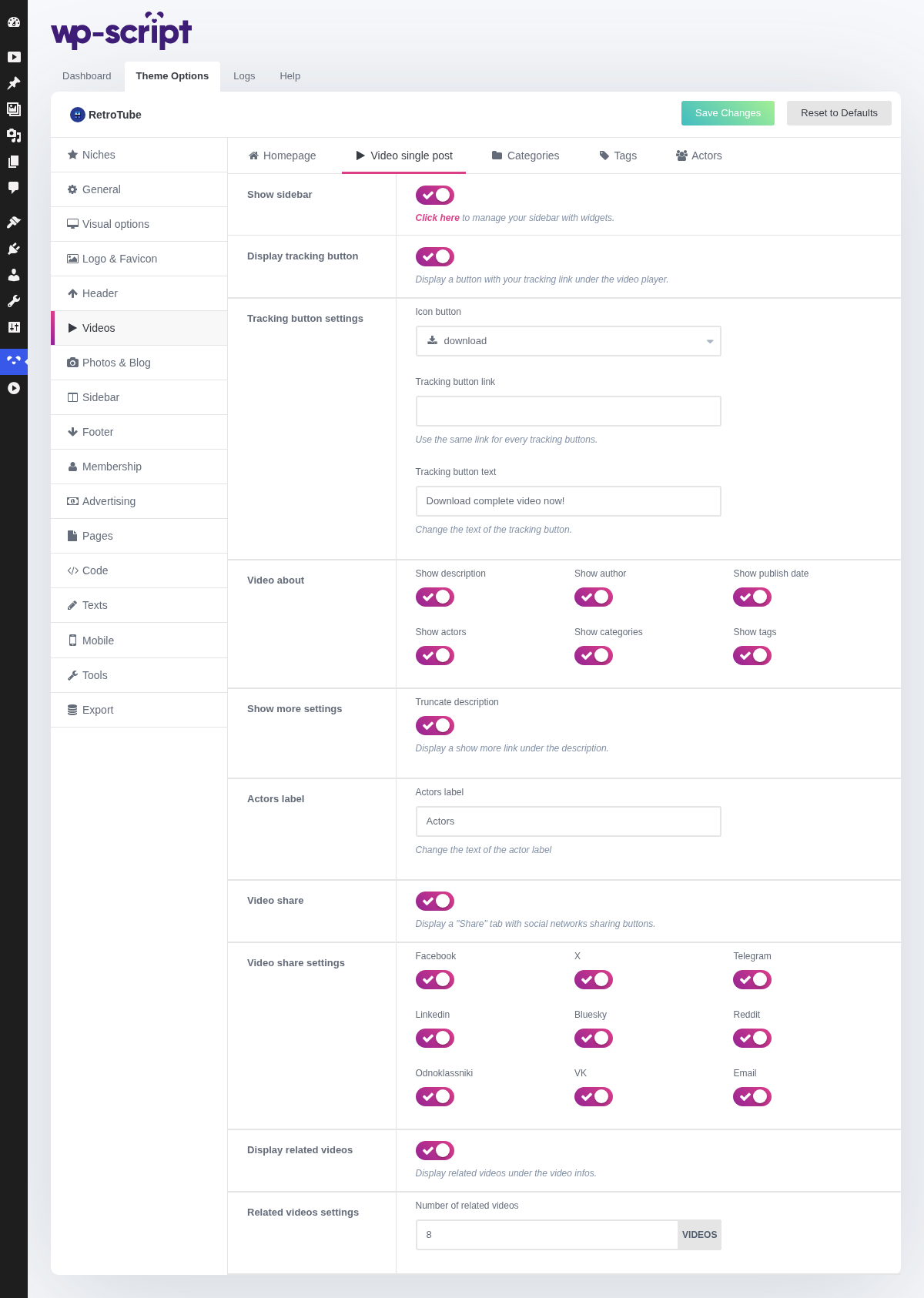
1. Show Sidebar

Click here to manage your sidebar with widgets.
The video page is where a sidebar earns its place: a visitor who is watching has a reason to look at what is next to the player. If you run a sidebar anywhere, run it here.
2. Display Tracking Button

This option allows you to display or not a tracking button under the video player. The link of this button is set in the Video Information metabox directly in the video post edition.
The one option on this page that makes money. Leave it off if you have nothing to point it at: an empty promise under every video costs you the click you would have got from the related videos.
3. Tracking Button Settings
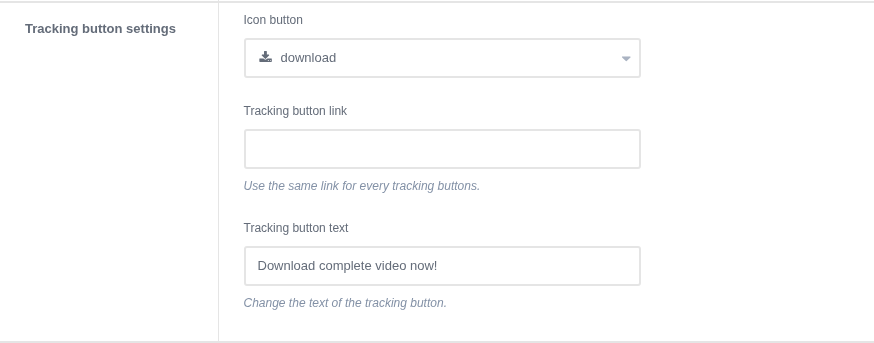
1. Choose an icon

2. Set a unique URL for all tracking buttons
In general, each tracking link is different and is configured in the Video Information metabox for each video post. But it can be useful in certain cases to be able to put the same URL for every buttons. For example if you are working with a single sponsor, you can set a single affiliate link that will apply to all buttons.

3. Set the button text

Result on the frontend

The look and the label are set here, the destination on each video in Video Information. The single URL field is the exception, for a site working with one sponsor.
4. Video About

This option allows you to display what element you want about the video:
- Description
- Author
- Publish date
- Actors
- Categories
- Tags
Result on the frontend

Categories, tags and actors are worth keeping on. They are links, and they are what turns a video page into a way of browsing your site rather than a dead end.
The author and the publish date are the two most sites turn off: a date ages a video that has not aged, and a username means nothing to a visitor.
5. Show More Settings

This option allows you to truncate the video description. If the length of the video description is too long, a "Read more" button will be displayed to allow your visitors to read the whole description.
Result on the frontend

On imported videos, where descriptions come in at whatever length the source used, this is the difference between a tidy page and a wall of text.
6. Actors Label

Change the name of the label for actors, for example “pornstars”.
Whatever you put here is used everywhere the theme names them, including on the Actors page. "Pornstars" and "Models" are the two usual choices.
7. Video Share

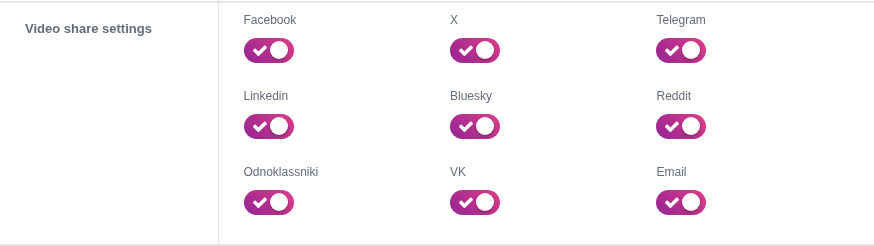
Choose what social network you want to enable for video sharing.
The share buttons only pay off on a site people want to be seen visiting, which an adult tube usually is not. They cost nothing to leave on, and they are one of the first things to remove when you are tidying a video page.
8. Video Share Settings
Result on the frontend

9. Display Related Videos

Related videos are videos that are categorized in the same category than the current video. There are displayed randomly. You can replace this section by what you want with a widget: Under the video widget area
Related videos are the main reason a visitor watches a second video rather than leaving, so this is one to keep on.
They occupy the area under the player, which is also a widget area: adding any widget there replaces them. If you want both, add a Video Blocks widget set to related first, then your other widgets.
10. Related Videos Settings

Result on the frontend

Keep the count a multiple of your videos per row, set in General, so the block does not end on a half empty line.