Video Submission
RetroTube can take videos from your members, through the Submit a video page created when the theme is activated.
It is switched on in the theme's Membership options, at RetroTube → Membership, with Enable video submission.
The form is shown to logged-in visitors only. Everyone else is told to log in or register instead, so submission depends on Enable membership being on in the same panel, and on WordPress itself allowing registration at Settings → General.
1. What the form asks for
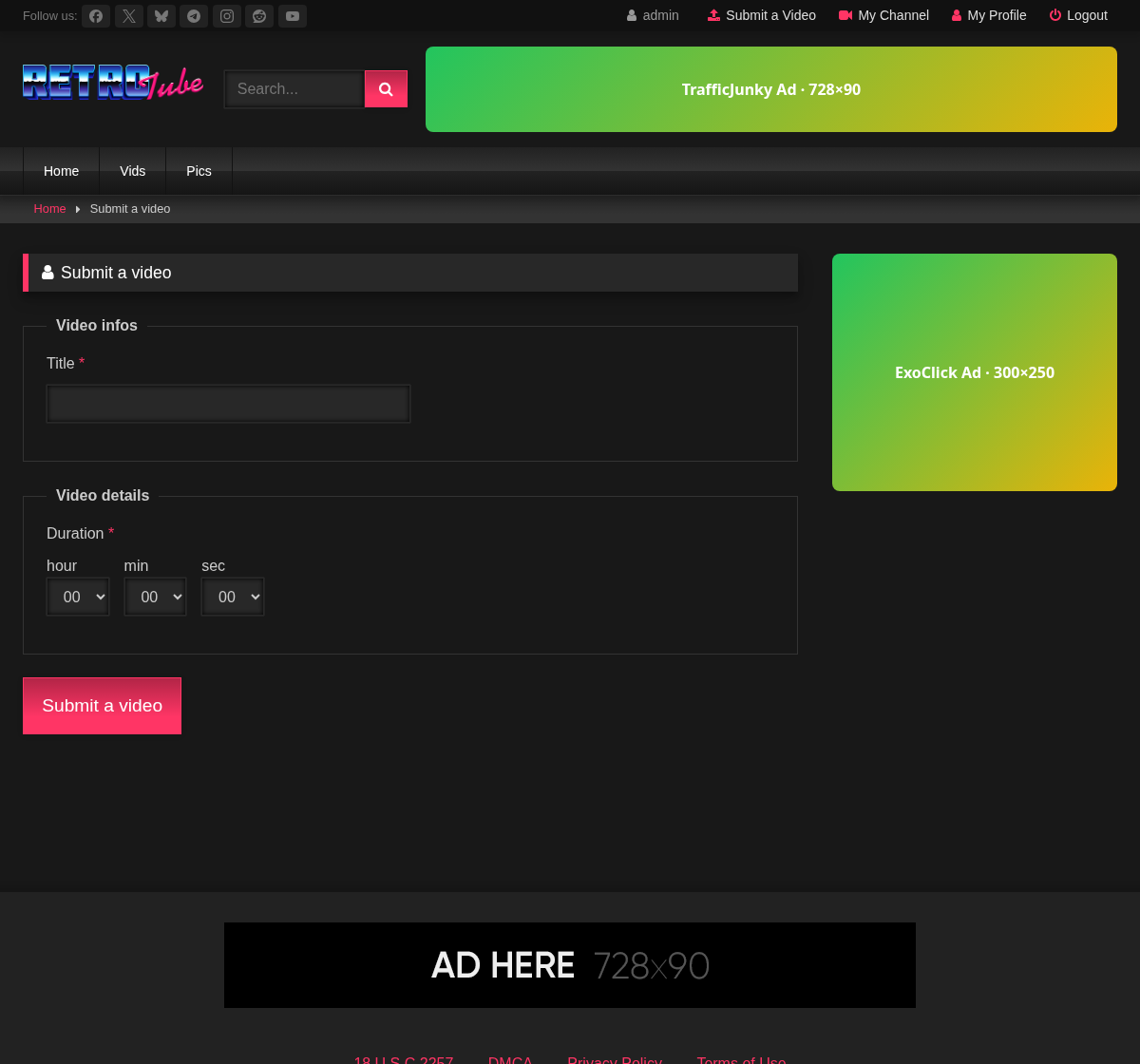
The same fields you would fill in yourself on a post:
| Field | Notes |
|---|---|
| Video title | |
| Video description | |
| Video URL | A link to an mp4 file |
| Embed code | For a video hosted elsewhere |
| Video file | An upload from the member's machine |
| Thumbnail URL | A link to an image |
| Thumbnail file | An upload |
| Category | Picked from your existing categories |
| Tags | Comma separated |
| Actors | Comma separated |
| Duration | Hours, minutes, seconds |
Each field has two switches in Video submit settings: one shows it at all, the other makes it required. That is where you decide the shape of the form.
Shorter forms get more submissions and give you more editing to do; longer ones give you tidier posts and fewer of them. A reasonable starting point is title, one source field and a thumbnail required, the rest optional.
2. Links or files
RetroTube accepts both, and the difference matters.
A link costs you nothing: the file stays wherever the member found it. A file is uploaded to your server, counts against your disk and your bandwidth, and is yours to keep hosting.
If you leave the upload fields on, know what your limits are. The ceiling shown in the options panel comes from PHP, not from the theme, and it is raised in your hosting configuration rather than here.
An open upload form on an adult site attracts everything from copyright claims to files that have nothing to do with video. If you are not going to review every submission on the day it arrives, take the upload fields off and accept links only.
3. What happens to a submission
Every submission is saved as a pending post. Nothing a member sends appears on your site until you approve it.
Review them at Posts → Pending. A submission arrives as a normal video post, so approving one is usually a matter of checking the source plays, fixing the title, and publishing.
A submission is a link to someone else's file. Play it before publishing: nothing stops a member pointing the form at anything at all, and once you publish it, it is on your site under your name.
4. reCAPTCHA
The Membership panel has a Google reCAPTCHA option, guarding registration and submission. It needs a site key and a secret key from Google.
Since the form is already behind a login, reCAPTCHA is a second barrier rather than the first one. It earns its place once bot-registered accounts start posting, which happens on any site with open registration, and not before.
5. What it does not do
- It does not notify you. Nothing arrives by email, so check Posts → Pending yourself.
- It does not credit the member. The submission becomes an ordinary post once published.
6. Where to go next
- Video Information for the fields you will be reviewing.
- Membership for the settings themselves.