Niches
Preset option sets you can load in one click, and the place where a saved backup is imported.
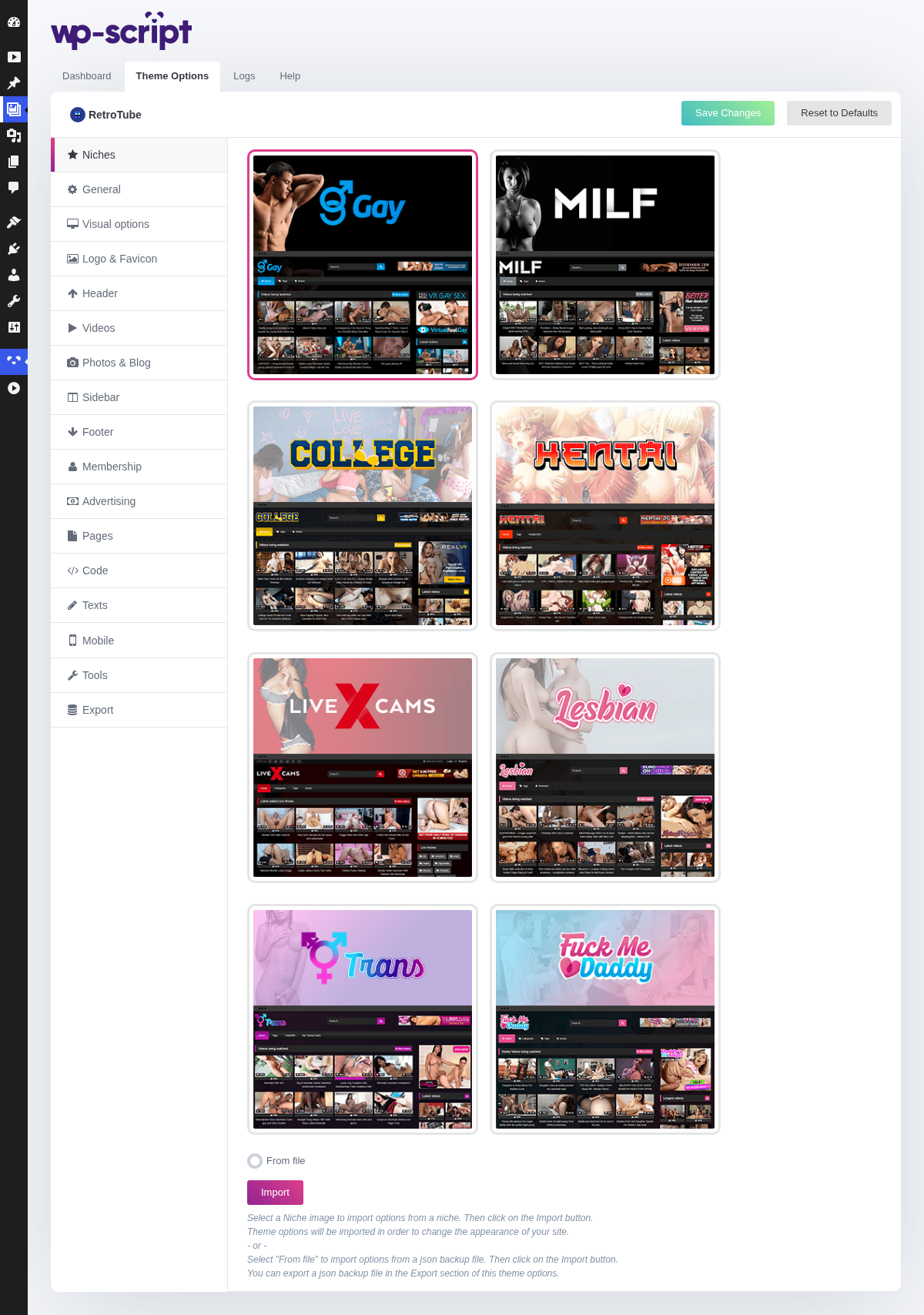
1. Select A Niche
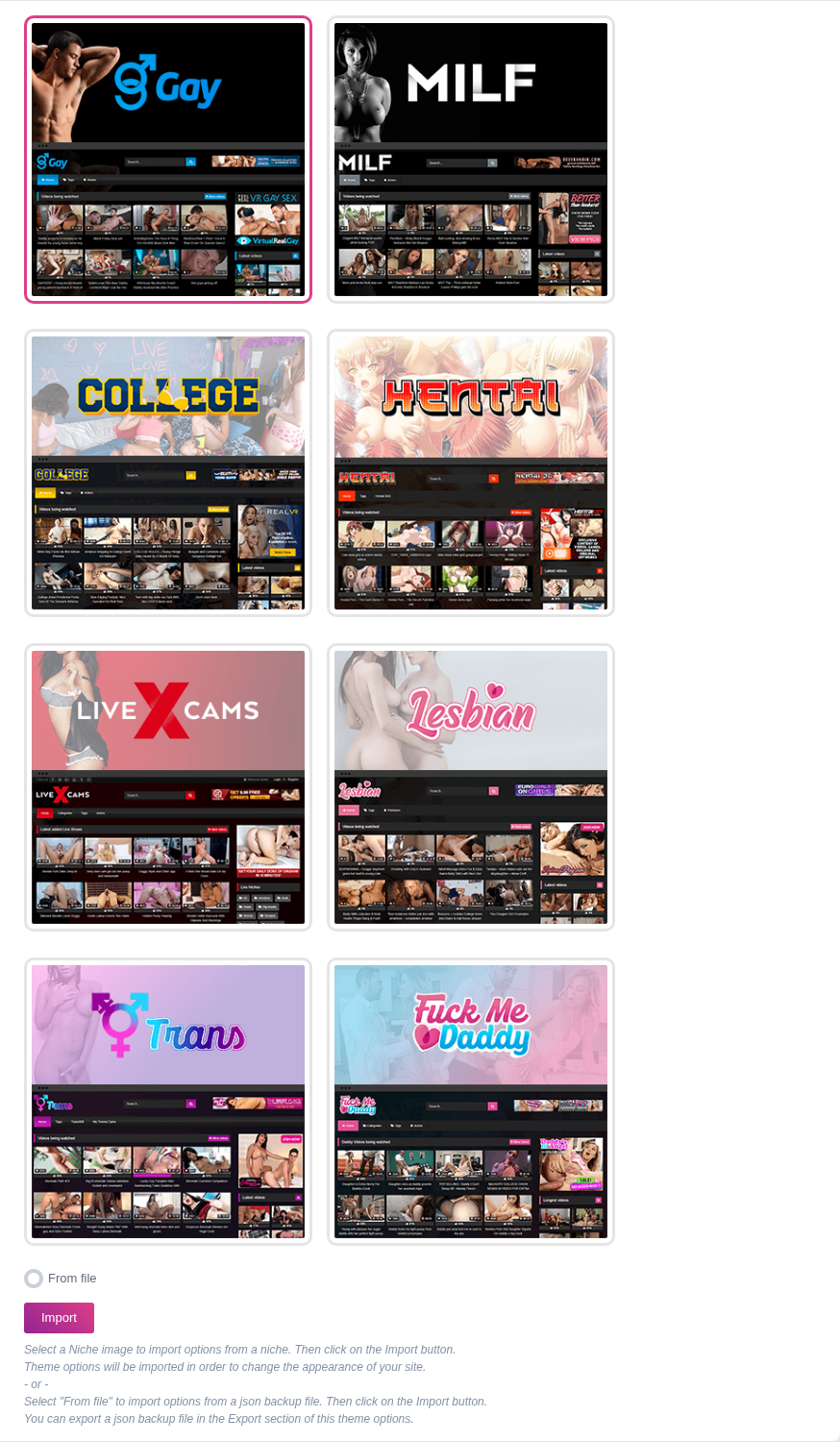
Select a Niche image to import options from a niche. Then click on the Import button.Theme options will be imported in order to change the appearance of your site.- or -Select "From file" to import options from a json backup file. Then click on the Import button.You can export a json backup file in the Export section of this theme options.
A niche is a complete set of theme options, so importing one overwrites every setting on every tab, not just the colours: your layout, your ad codes and your homepage text go with it.
That makes a niche a starting point rather than a skin, and the order matters. Import the niche first, then set your logo, your ad zones and your texts. Doing it the other way round loses the work.
There is no undo. If your site is already configured, take a backup first from Export, so a niche you dislike costs you one import rather than an afternoon.
The From file entry takes the JSON produced by Export. It is the same mechanism as a niche, so the same warning applies. Two things it is good for: moving a configuration from a staging site to the live one, and putting your settings back after trying a niche out.