Homepage
The homepage of a site is a really important page. This is usually the most visited page and it’s this page that will hook your visitors by offering them various navigation possibilities.
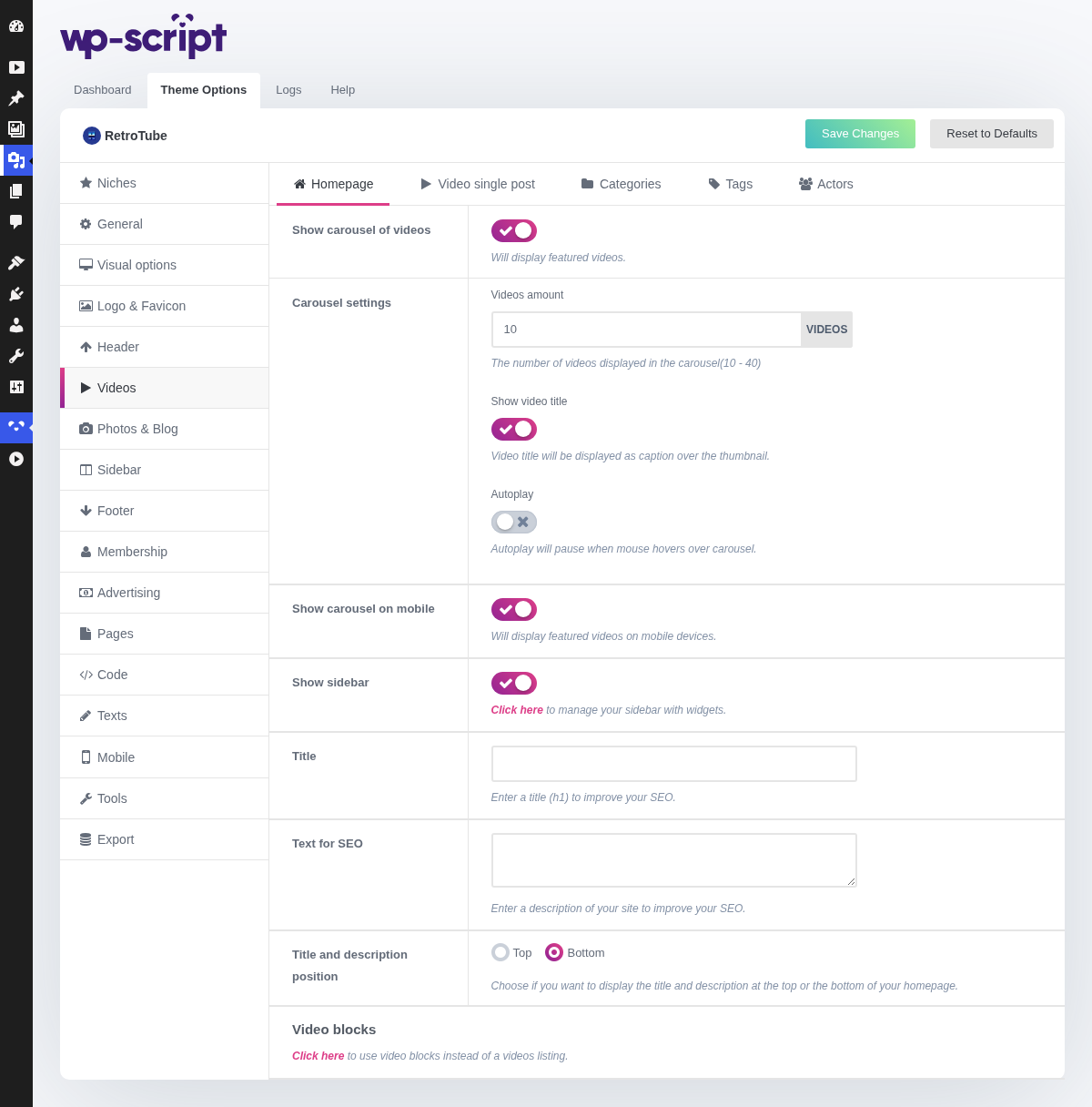
1. Show Carousel Of Videos

The carousel allows you to highlight certain videos that you consider to be featured.
How to add videos to the carousel
It also brings a dynamic element to your site.
The carousel is the one part of the homepage no filter feeds, which makes it the right place for what a filter cannot know: an exclusive, a sponsored clip, the video you want seen first today.
It also means an empty carousel is normal on a new site, and stays empty until you mark something.
2. Carousel Settings
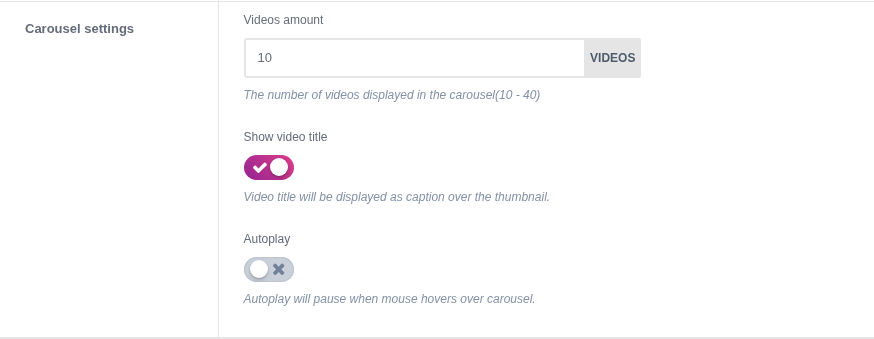
Set the number of videos displayed in the carousel. Display titles as captions over each thumb of the carousel and enable or not the autoplay (the carousel will scroll automatically).
Keep at least as many videos featured as the carousel displays, and unmark them as they age. A carousel showing the same five videos for six months is worse than no carousel, since it is the first thing a returning visitor sees.
3. Show Carousel On Mobile

The carousel is mobile ready (swipe) but you can choose to disable it only on mobile if you want.
The carousel is the heaviest thing on the page. Turning it off on phones leaves the desktop homepage untouched and gets your visitors to the grid sooner.
4. Show Sidebar

This option allows you to display or not the sidebar on your homepage only if you want this page to have a different structure than the others.
Some prefer to have a full width homepage and use a sidebar only on video pages.
A full width homepage with a sidebar everywhere else is the usual arrangement: the homepage is the page you want to fill with thumbnails, while the sidebar earns its place next to a video.
5. Title

Add a title (H1) on your homepage to improve SEO. By default, there is no h1 tag on the home page, which is why we have added this option which is very important for Google SEO.
WordPress gives a homepage no H1, which is why this field exists. Write it for a reader: a title stuffed with keywords is worth less than an honest one.
6. Text For SEO

Add a description on your homepage to improve SEO.
Two honest sentences saying what the site holds beat a paragraph of keywords. This is also the only text on the homepage a search engine can read, since everything else is thumbnails.
7. Title And Description Position

This option allows you to choose the position of the title and description block on your homepage. We recommend displaying this at the top of your site for natural reading by Google robots (H1 then H2 etc.).
Above the videos is the right answer for search engines, which read the page in order, and the wrong one for visitors, who came for thumbnails and not for a paragraph. Below the videos is the usual compromise: the text is still on the page, still indexed, and nobody has to scroll past it.
8. Video Blocks

Click here to use video blocks instead of a videos listing.

By default, homepage displays video listing like any other archive pages. But this is possible to use different video blocks with RetroTube. For example a block of the longest videos, another block of the recently added videos, etc. You can also display advertising between each blocks. This option will redirect you in the widgets section of your site.
This is the biggest decision on the tab, and it is worth taking after you have some content.
A listing is the same grid as a category page: your latest videos, then pagination. It is simple, it always has something to show, and it is the right answer on a site with a few dozen videos.
Video blocks replace that single grid with several smaller ones, each with its own filter: most viewed, longest, random, a given category. That is what the big tubes do, because it gives a returning visitor several entry points instead of one, and it leaves room for a banner between the blocks.
The catch is that blocks are widgets, so they live in Appearance → Widgets and the button here simply sends you there. See Video Blocks.
Blocks are also the only shape that looks empty on a new site: five blocks of three videos on a site holding twelve videos shows the same clips five times. Start with the listing, switch when you have the catalogue for it.