Categories
The illustrated Categories page that lists them all and the category archives: which page plays each role, their addresses and their options.
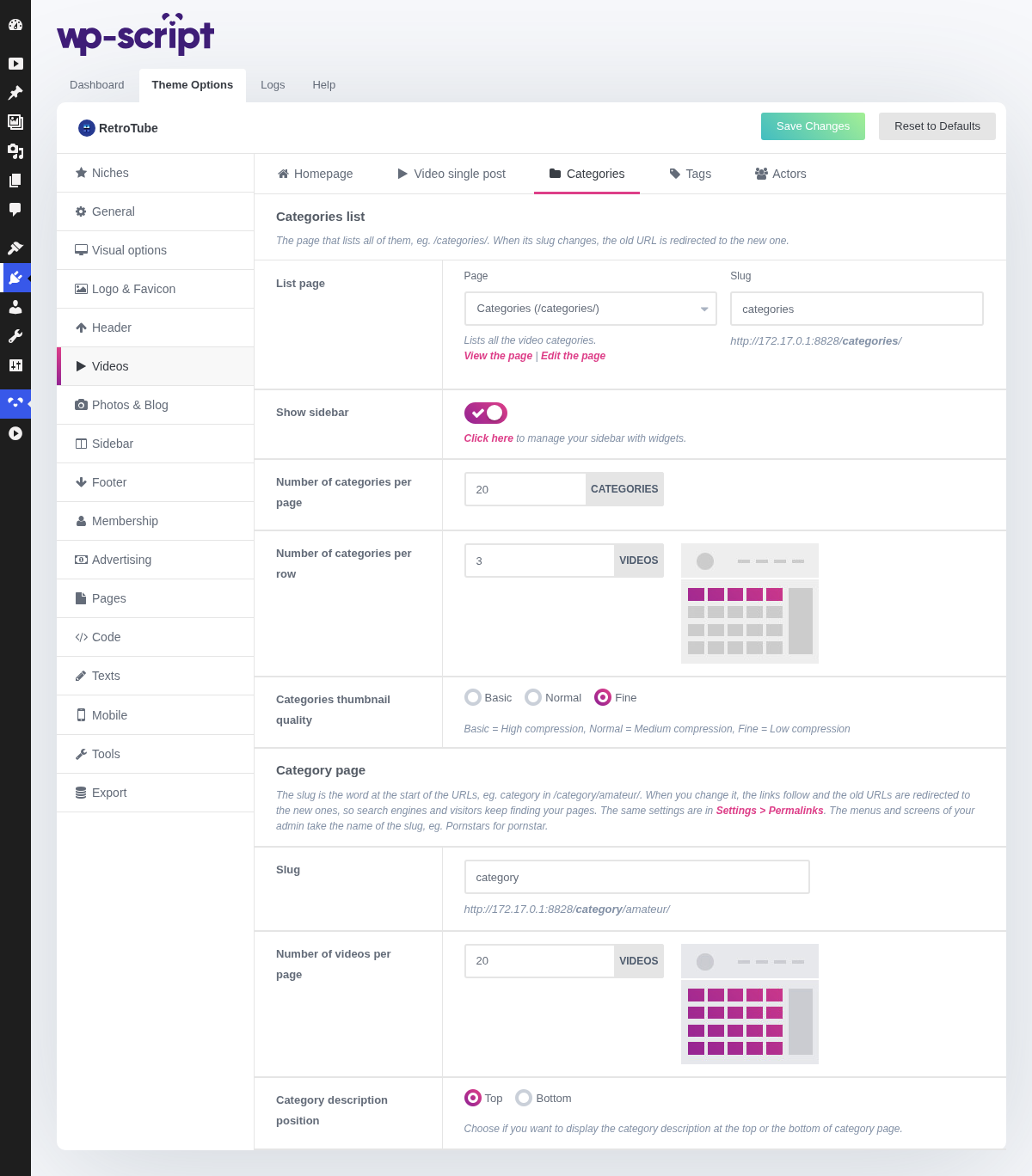
1. Categories List

The page that lists all your video categories, /categories/ by default. When its
slug changes, the old URL is redirected (301) to the new one.
2. List Page

The page playing that role. Only the pages using the Categories template are offered, so you cannot pick a page that would not show the list. Under it are View the page and Edit the page links, or a Create it button when the page was deleted, and the other pages using the same template, each with View and Move to trash.
Change the address of the page in the slug field next to it, previewed as you type. When another page takes the role, the menu links to the old one follow. These fields work like the ones of the Pages tab.
3. Show Sidebar

Click here to manage your sidebar with widgets.
Category pages are listings, like the homepage, so whatever you decided there usually applies here too.
4. Number Of Categories Per Page

This option allows you to display the number of categories you want to display on the illustrated categories page.
See a live example: https://demo.wp-script.com/rtt-adult/categories/
This one and the next shape the Categories page, the grid of category images built by the Categories page template, not the archives themselves.
The page is only worth having if your categories carry images: a category without one shows a placeholder, and a grid of placeholders looks worse than a plain text list. Setting them is ten minutes of work once, and it turns a text menu into the second most clicked thing on the site.
5. Number Of Categories Per Row

6. Categories Thumbnail Quality

Set the main thumb quality of category thumbnails, you have 3 choices.
What thumb quality to choose?
- Basic (High compression) - Choose this option if you favor speed over beauty. A very compressed image will be lighter to load and therefore your site will be faster.
- Normal (Medium compression - Recommended) - Set by default, this parameter is a good compromise between beauty and speed. The medium compression is not noticeable, the image quality remains correct and its weight is lightened.
- Fine (Low compression) - Choose this option if you favor beauty over speed. A low compressed image will take longer to load but will have HD quality. Use if you have a powerful server.
Category images are large and there are few of them, so this can be set higher than the video thumbnail quality without costing you much.
7. Category Page

The archive of each category, at /category/amateur/ by default, and its options
below.
8. Slug

The word at the start of the category URLs, category in /category/amateur/.
Change it, niche for instance, and save: the links of your site follow
and the old URLs are redirected (301) to the new ones, so search engines and
visitors keep finding your pages. It is the same setting as Category base in Settings → Permalinks: change it in either place.
Your admin follows the slug too: with niche, the menu and the screens
name them Niches. A slug already used by another part of the theme is
refused with a notice, and leaving the field empty goes back to category.
9. Number Of Videos Per Page

This one applies to an individual category archive, the listing a visitor lands on after clicking a category, and it overrides the site-wide figure from General.
10. Category Description Position

Read our WordPress guide to add a video category description.
Same trade-off as on the homepage: above the videos is what search engines prefer, below is what visitors prefer. Below is the usual answer, since a category page already gets its keyword from the title and the URL.