Texts
Replace any text TikSwipe shows your visitors, like menu labels, buttons and messages, and choose the language of your admin.
1. Your site language and your admin language
TikSwipe is translated into English, French, German, Spanish, Italian, Portuguese, Russian and Hindi. Your visitors see the theme in the language of your site, set in Settings → General → Site Language.
The admin follows the language of your own profile instead. To run a French site from an admin in English, keep French as the site language and pick English in Users → Profile → Language. Your visitors see no change.
2. Changing a text
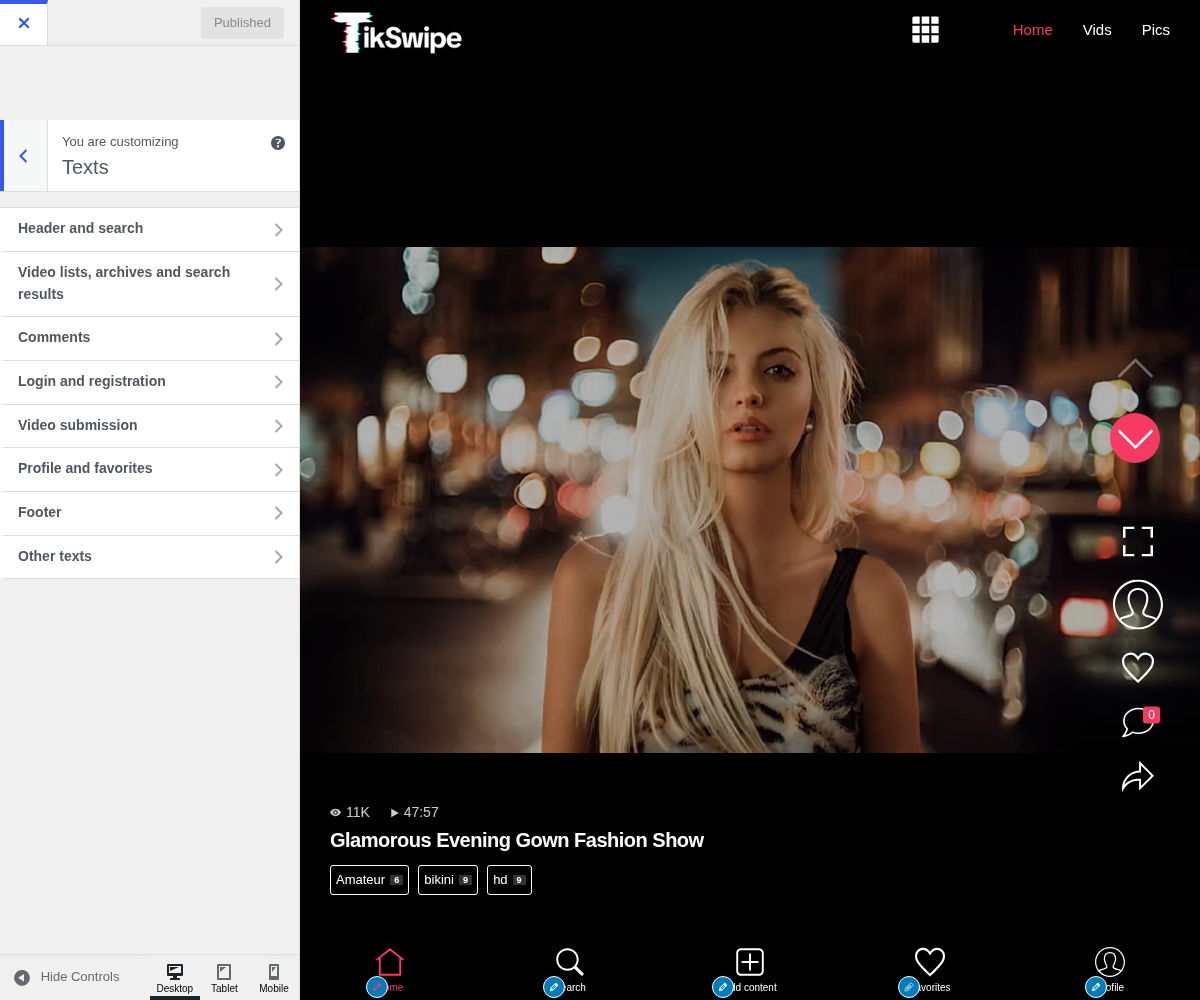
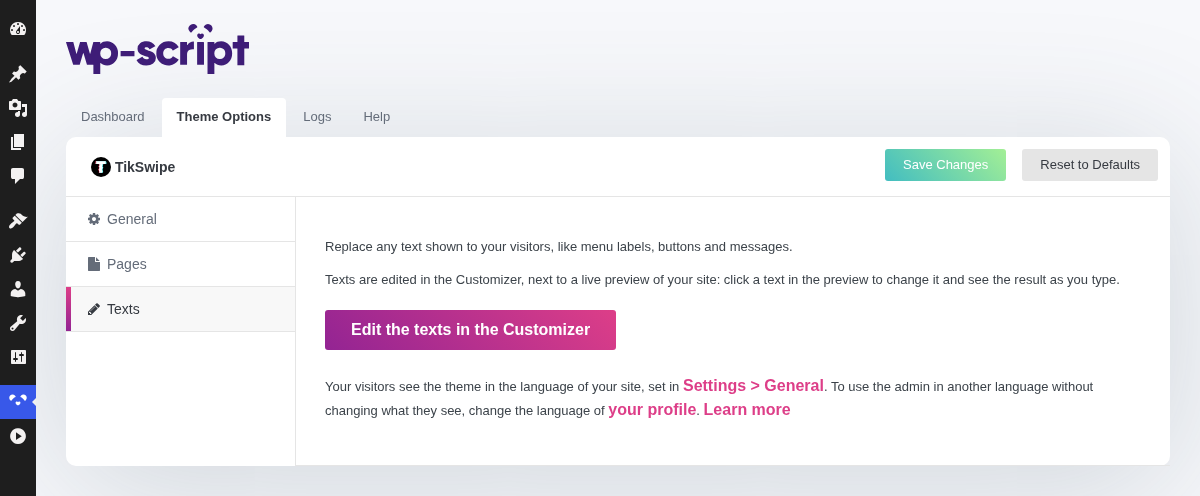
The Edit the texts in the Customizer button opens the Texts panel of the Customizer, next to a live preview of your site:
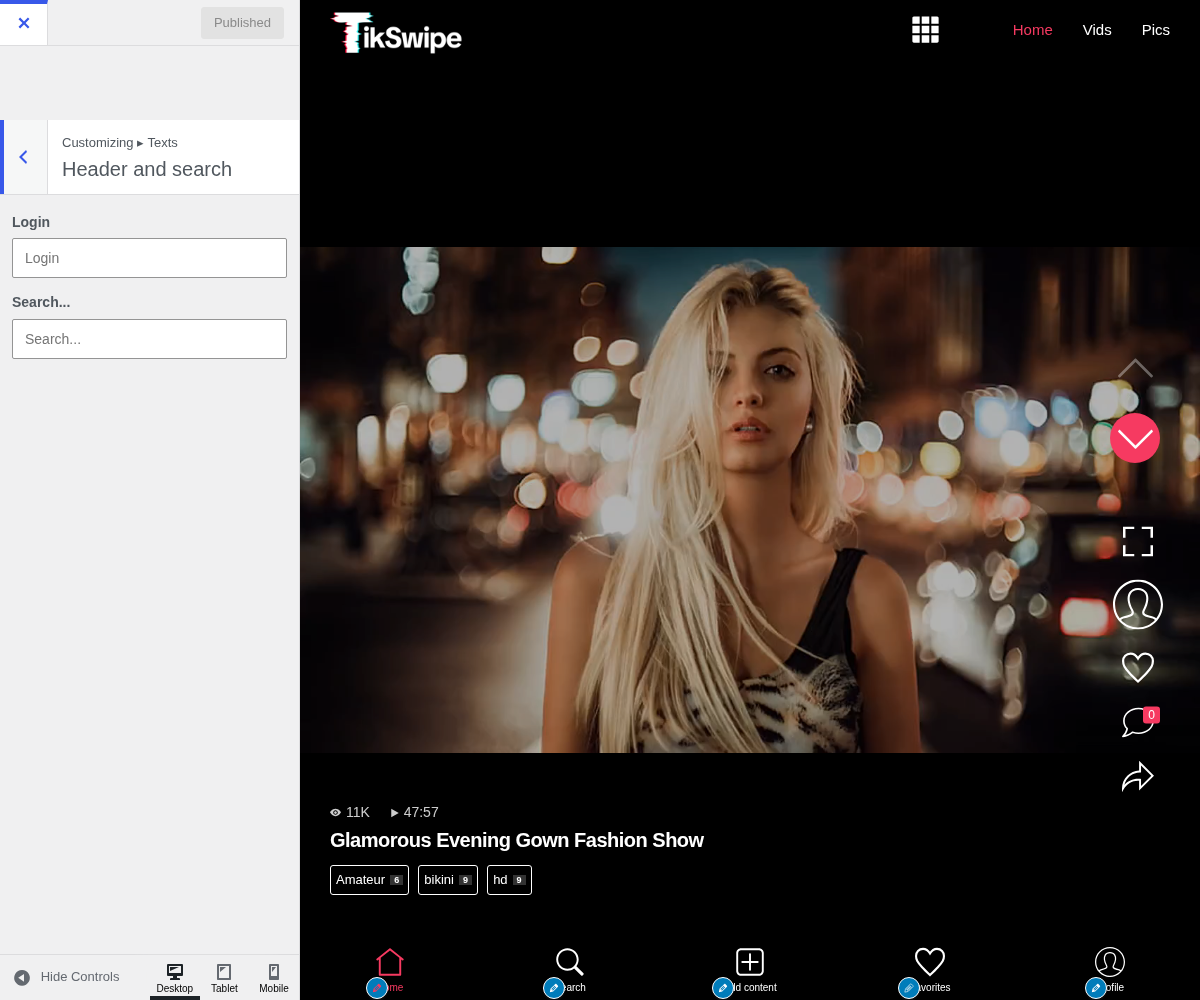
- A pencil sits next to every text of the theme in the preview while the panel is open. Click one to jump to its field, or open a section: Header and search, Video lists, archives and search results, Comments, Login and registration, Video submission, Profile and favorites, Footer and Other texts.
- Type your text. A plain text changes in the preview as you type; a text with codes or HTML reloads the preview.
- Click Publish.
Each empty field shows the current text in grey, in the language of your site. Leave a field empty to keep that text: it stays translated if you change the site language later.
Keep the codes of the original text, like %s or %1$s: they are replaced by a
number, a name or a link. A custom text that loses or adds a code is ignored and
the original text shows instead, so a typo never breaks a sentence.
The labels of your menus are not theme texts: you write them yourself in Appearance → Menus. You do not need a translation plugin such as Loco Translate to change a text of the theme.
The Texts panel of the Customizer, then its Header and search section open: