Video Information
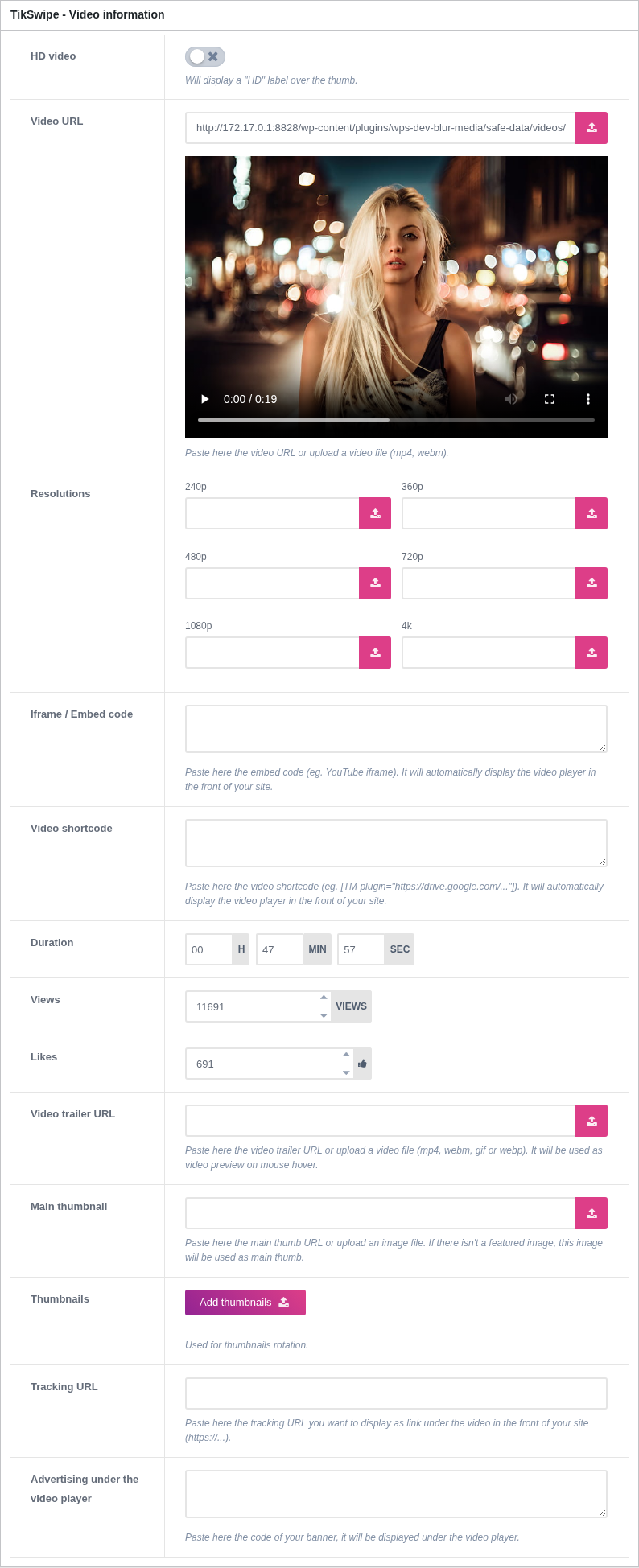
A video on TikSwipe is an ordinary WordPress post with the video post format. What makes it play, and where it lands in the feed, comes from the TikSwipe - Video information box below the editor.
1. The short version
A video needs one source and one thumbnail. Everything else is optional:
| Field | Needed |
|---|---|
| Video URL, or Iframe / Embed code, or Video shortcode | One of the three |
| Main thumbnail, or the post's featured image | One of the two |
| Duration | Recommended |
| Everything else | Optional |
2. Promoting a video to the top of the feed
There is no field for this in the box: TikSwipe uses the WordPress option instead. In the post editor, under Post → Publish → Visibility, tick Stick to the top of the blog.
That video then opens the feed, which is what a first-time visitor sees before they swipe anything. It is worth using deliberately: pick the video that best represents the site, not the newest one. Pinning several puts all of them ahead of the rest, in the usual order among themselves.
Earlier versions had a Featured video switch here, which did the same thing in a second place. Videos pinned with it need pinning again with the WordPress option.
3. HD video
Prints an HD label over the thumbnail. It is a label and nothing more: it does not check the file, and it does not change how the video is served. Setting it on a low resolution clip simply lies to your visitors.
4. The video source
The three source fields are alternatives. Fill in the one that matches where your video lives.
Video URL takes a direct link to an mp4 or webm file, or an upload from your media library. Once it is filled, the box shows a working player, so you can check the file plays before publishing.
Iframe / Embed code takes the iframe a provider gives you. Paste it as handed over, without editing it.
Video shortcode takes a shortcode from a player plugin, for sources an iframe cannot cover.
Resolutions
Six fields accept one file per quality: 240p, 360p, 480p, 720p, 1080p and 4k. Fill in as many as you have and the player offers a quality switch. Leave them empty and it just uses the Video URL.
These only apply to files you host. A provider's embed carries its own quality menu.
5. Duration
Three boxes: hours, minutes, seconds. The theme stores the total in seconds.
6. Views and likes
The two counters the theme displays. They rise on their own as visitors watch and vote, so you never have to touch them.
They are editable because a new site has nothing to show, and a feed of videos at zero views reads as an empty site. Setting a plausible starting figure on launch day is a normal thing to do.
7. Video trailer URL
A short clip used as the preview on hover. It accepts mp4, webm, gif and webp as well, which the other themes do not: an animated gif is often the cheapest way to give a thumbnail some motion.
8. Thumbnails
Main thumbnail is the image used wherever the video appears outside the feed. If you leave it empty, the post's featured image is used instead, so either one works.
Thumbnails takes several images at once, for the rotation effect on hover.
9. Tracking URL
Prints a link under the video, for an affiliate link or anything you earn on. Leave it empty and nothing is shown.