Membership
Member accounts, the front end submission form, and the anti-spam that guards them.
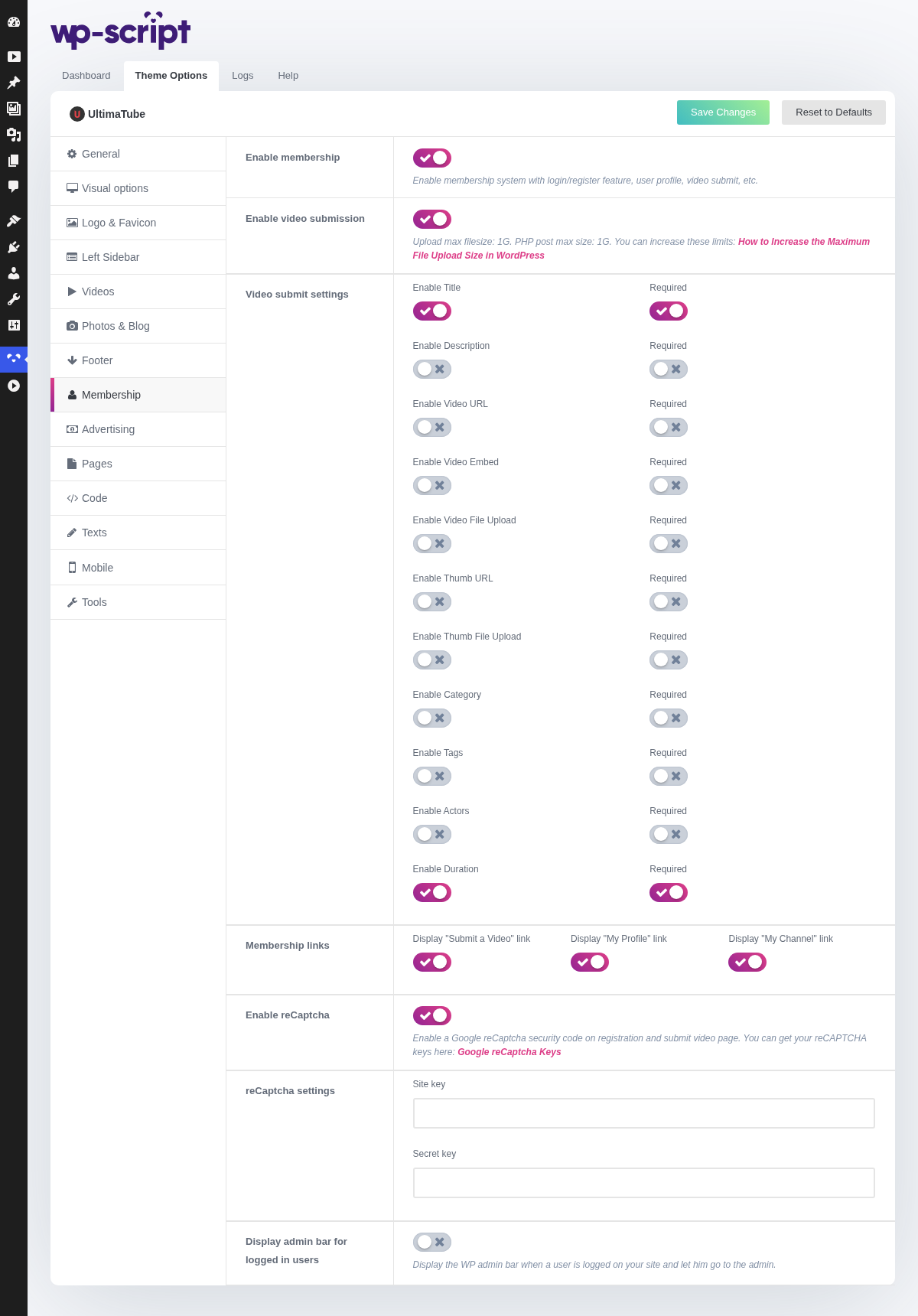
1. Enable Membership

Enable membership system with login/register feature, user profile, video submit, etc.
Everything else on this tab hangs on this switch, video submission included.
It also depends on WordPress itself: registration has to be allowed at Settings → General → Anyone can register, otherwise the register form is shown and refuses everyone.
2. Enable Video Submission

Upload max filesize: 1G. PHP post max size: 1G. You can increase these limits: How to Increase the Maximum File Upload Size in WordPress
The form is shown to logged-in members only, on the Submit a video page created when the theme was activated. Everyone else is asked to log in first.
Every submission arrives as a pending post, and nothing tells you it arrived, so check Posts → Pending yourself.
3. Video Submit Settings
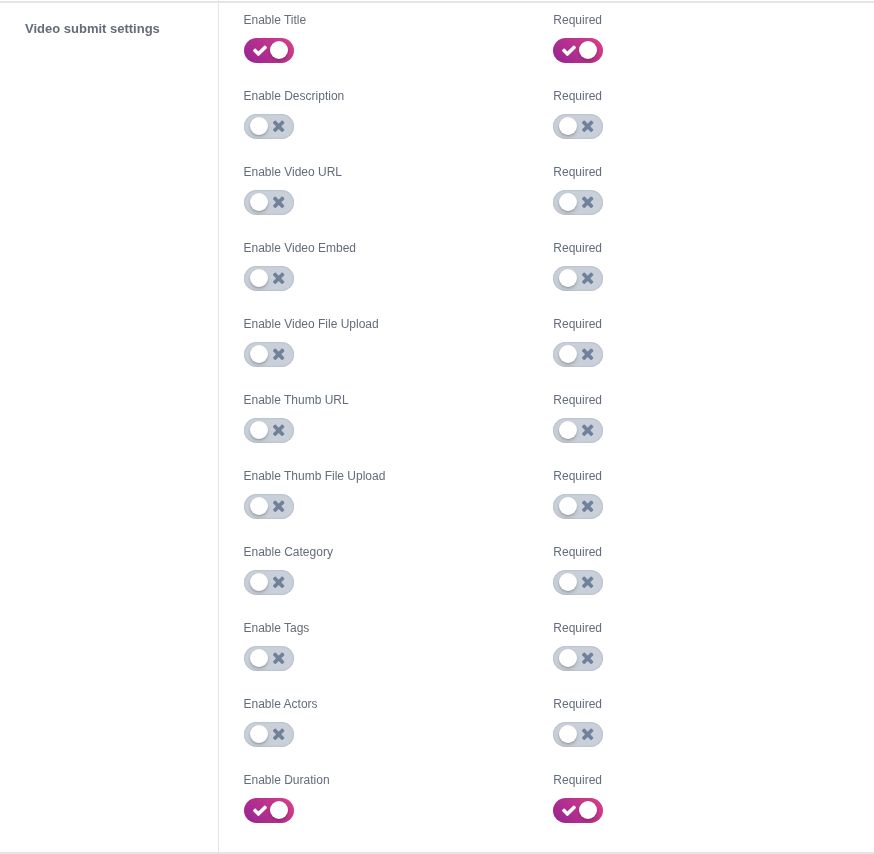
Two switches per field: one shows the field or hides it, the other makes it required. That is where you decide the shape of the form.
Shorter forms get more submissions and give you more editing to do; longer ones give you tidier posts and fewer of them. A reasonable starting point is title, one source field and a thumbnail required, the rest optional.
4. Membership Links

Decides which of the account entries appear in the header, so you can run member accounts without advertising them.
5. Enable ReCaptcha

Enable a Google reCaptcha security code on registration and submit video page. You can get your reCAPTCHA keys here: Google reCaptcha Keys
Registration is the form that gets attacked, not submission, which is already behind a login. Turn it on the day the fake accounts start arriving, which on an open registration site is usually the first week.
6. ReCaptcha Settings

Needs a site key and a secret key, created for your domain in the Google reCAPTCHA console. A key made for another domain silently fails on yours.
If visitors get a captcha error on every try, see reCAPTCHA errors.
7. Display Admin Bar For Logged In Users

Display the WP admin bar when a user is logged on your site and let him go to the admin.
This shows the WordPress toolbar to every logged-in member, not just to you. On a site with public accounts it puts a link to the admin in front of people who have no business there, and it sits over your header.
Leave it off unless the only accounts on the site are yours.