Logo & Favicon
The two kinds of logo the theme can build, and the favicon.
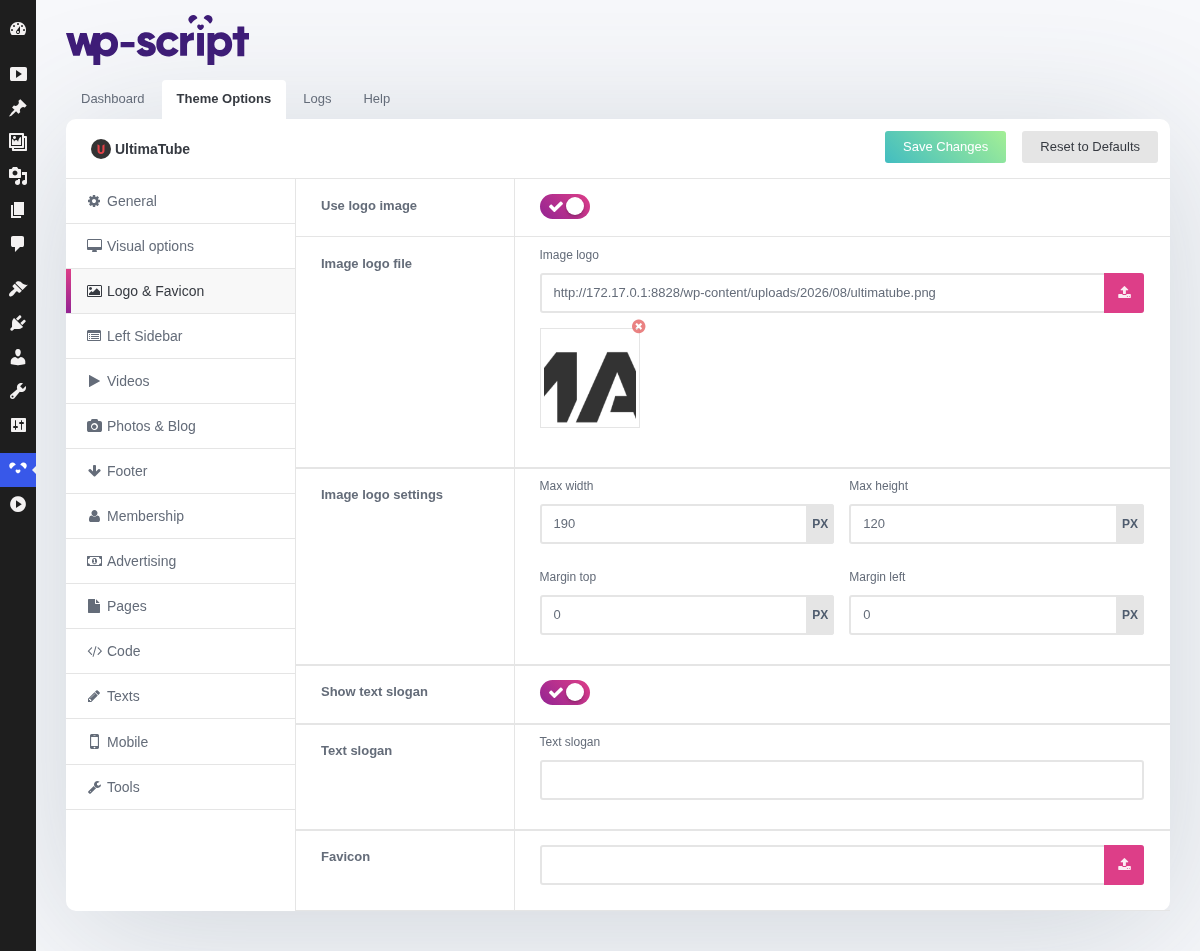
1. Use Logo Image

This switch decides which of the panels below you actually see.
Off, the logo is built by the theme: an icon from its own set next to your text logo. It costs nothing to set up, stays sharp on every screen, and takes the main colour, so it always matches the rest of the site.
On, the logo is an image you upload.
2. Icon Logo Settings

The icon shown next to the text logo, coloured with the main colour from Visual options, so it follows the rest of the site on its own.
3. Text Logo Settings

The site name as the theme prints it, with its own font family and size. This is the logo itself, not the WordPress site title, so changing it here changes nothing else.
4. Image Logo File
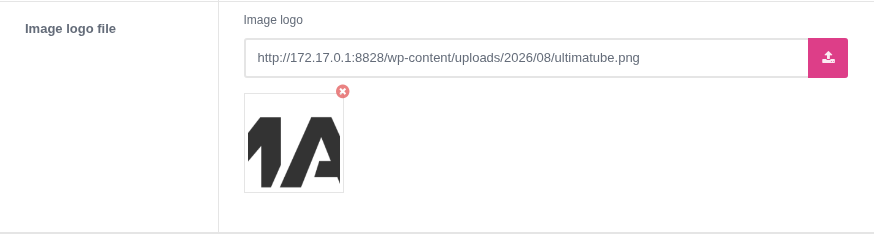
Upload the file at its own size and let the theme fit it. A 1300 pixel wide logo shown at 190 is sharp on a retina screen; the same file resized to 190 by hand before uploading is not.
5. Image Logo Settings

A max width and a max height, plus margins for nudging the logo into place. Start with the width alone and leave the height empty: setting both on a logo whose proportions do not match squashes it.
6. Show Text Slogan

The one place on the site where you can say what the site is, in words a search engine reads. Worth filling in with something better than the site name repeated.
7. Text Slogan

8. Favicon

The small icon shown in the browser tab and in bookmarks. Upload a square image; anything else is cropped. Nobody notices it when it is right, everybody notices the blank page icon browsers fall back to.