Dashboard
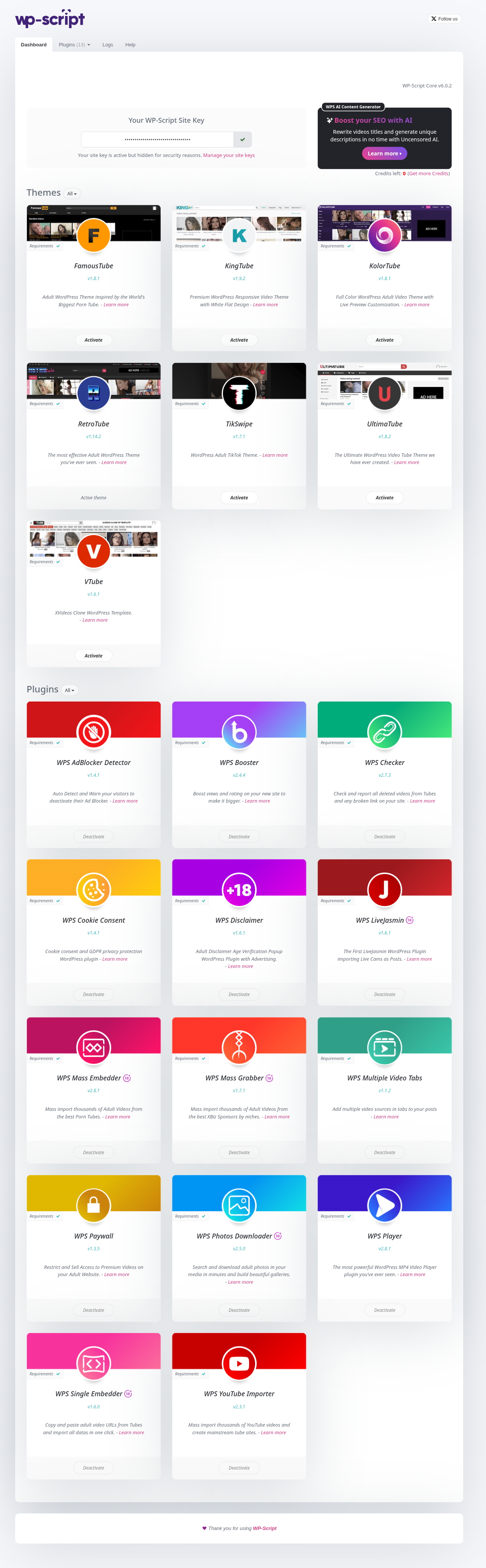
Once a site key is active, WP-Script → Dashboard shows your installed WP-Script version, your site key panel, your remaining AI credits, and every WP-Script theme and plugin you own.
1. Full Lifetime offer
If you don't already own a Full Lifetime license, a banner offering unlimited sites and every product for a one-time price appears at the very top of the dashboard, above everything else. It links to the Full Access offer page. Once you own Full Lifetime, this banner no longer shows.
2. Core version
Just under the banner, a line shows the installed Core version. If a newer version is available, an Update to vX.X.X button appears next to it, updating Core in place without leaving the page.
3. Site Key panel
Your site key is never displayed in clear text, it's shown as a masked placeholder. Paste a different site key into the field and click the refresh icon to replace the current activation, for example after moving a license to a different site.
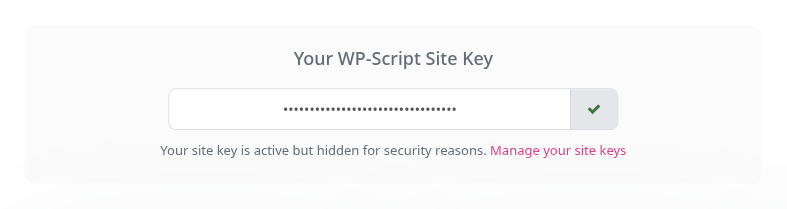
The Manage your site keys link opens My Account → Sites in a new tab.
4. AI credits box
The AI box promotes the WPS AI Content Generator (used to rewrite titles and generate descriptions) and shows how many WPS Credits are left on the account. The number turns red once you have 10 credits or fewer, with a link to buy more.
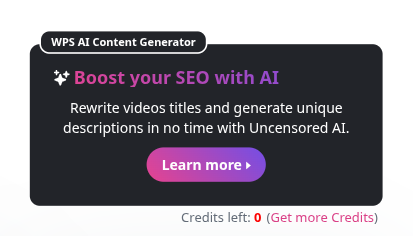
Bulk AI jobs queued from a connected product run in the background: Core checks for pending jobs every 5 minutes via WP-Cron and processes them automatically, no need to keep a browser tab open.
5. Product list
Products are grouped into sections, Themes and Plugins, each with its own filter dropdown (All, Connected, Not connected, Installed, Not installed). Every product is shown as a card with its logo, title, a Requirements badge, the installed version (or Not installed), a short description with a Learn more link, and an +18 badge on adult-oriented products.
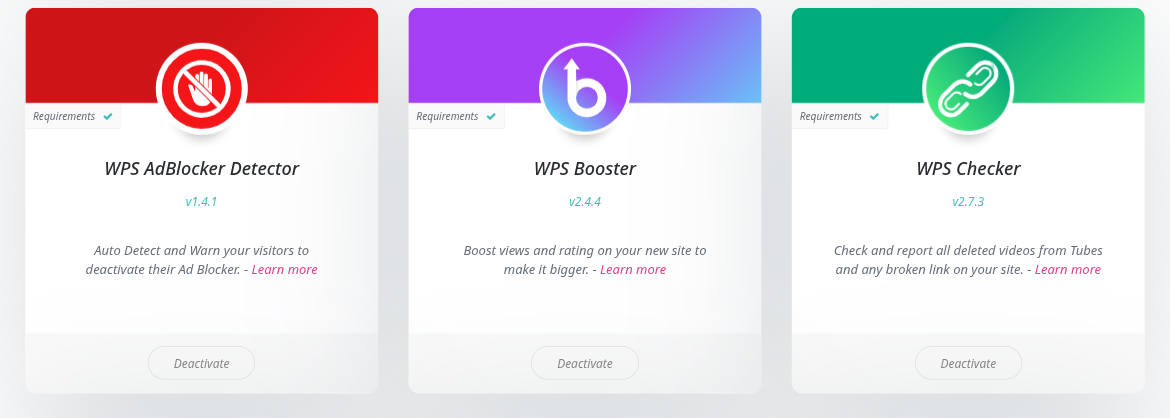
The action shown at the bottom of each card depends on the product's state:
- Connect: the product isn't connected to this site yet, and you still have at least one site left on your license. Clicking it opens a small confirmation panel showing how many connectable sites remain before you confirm.
- Buy now: the product isn't connected and you have no sites left to connect, this links to the product's purchase page, or to Full Access if you'd rather cover every product and site at once.
- Install: the product is connected but not yet installed on this site.
- Update to vX.X.X: a newer version is available for a product that's already installed.
- Activate / Deactivate: toggles the plugin on or off. For themes, an active theme shows Active theme instead of a deactivate button, since a site always needs one active theme.
When an install or an update fails, the error message shown on the dashboard tells you why, for example a download that failed or a folder WordPress cannot write to, so you know what to fix with your host before trying again. A product is only reported as updated once the new version is actually in place. Both need WP-Script Core 6.0.9 or later.
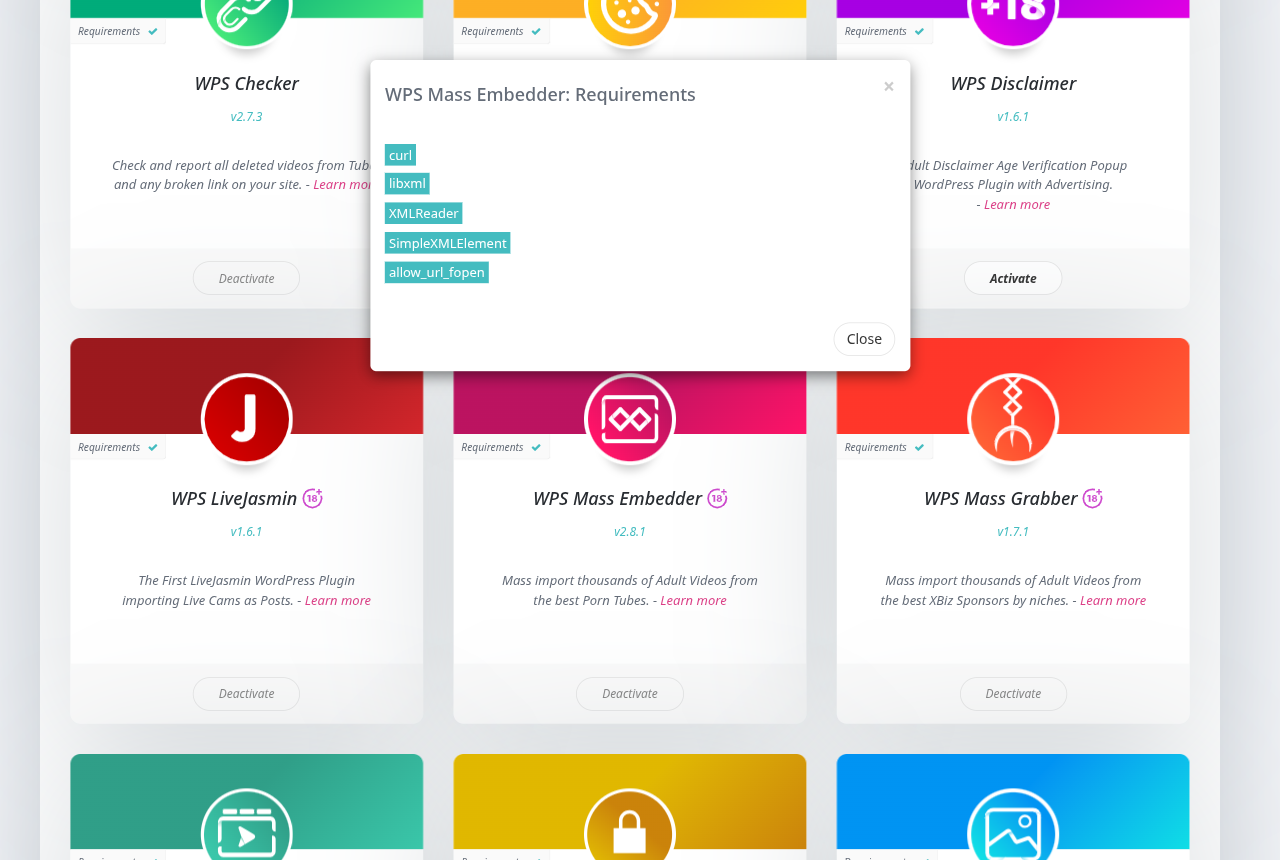
6. Requirements
Clicking a card's Requirements badge opens a modal listing every server requirement for that product (PHP version, required extensions, etc.), each marked green when your server meets it and red when it does not. The badge itself already shows a green check or a red warning icon so you can spot requirement issues without opening the modal.