Site Activation
The first time you open WP-Script → Dashboard on a site with no site key stored, Core shows an activation screen instead of your product list.
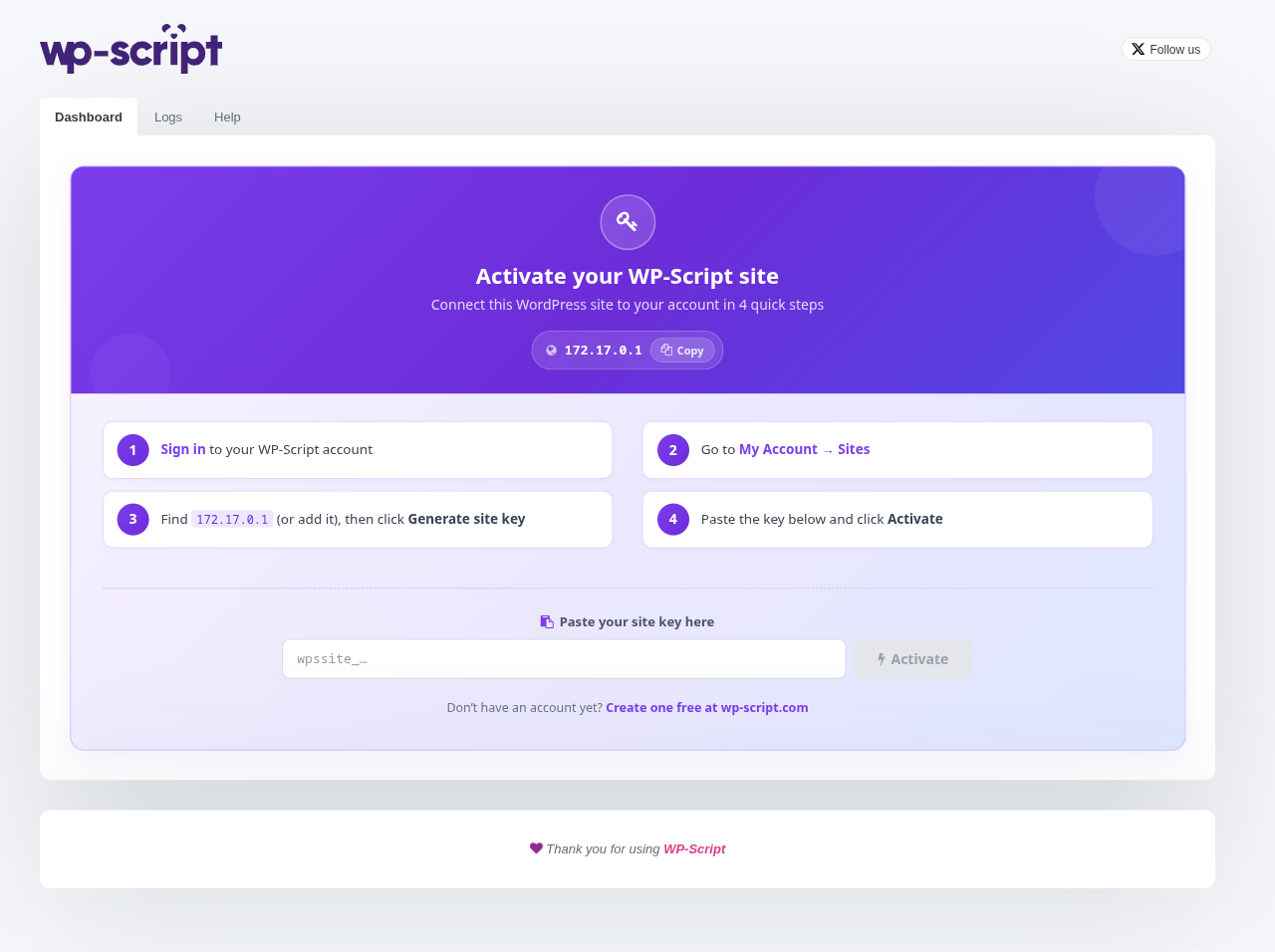
1. The four steps
- Sign in to your WP-Script account.
- Go to My Account → Sites in your account.
- Find this site's URL in the list (or add it), then click Generate site key. The exact URL Core expects is shown in a pill at the top of the activation card, with a Copy button next to it so you can paste it straight into the Sites screen.
- Paste the generated key into the field at the bottom of the card and click Activate.
Once the key is verified, the dashboard reloads on its own and shows your connected products.
2. If this site had an older license key
Sites set up before WP-Script switched to site keys show a blue notice above the activation card explaining that activation now works per-site through My Account → Sites, and that the old license key is still valid but no longer used for activation. The notice links to the full migration guide.
3. If activation fails
An invalid or already-used site key shows an error message next to the input instead of reloading the page. Double check the key was copied in full and generated for this exact site URL, then try again.