Actors
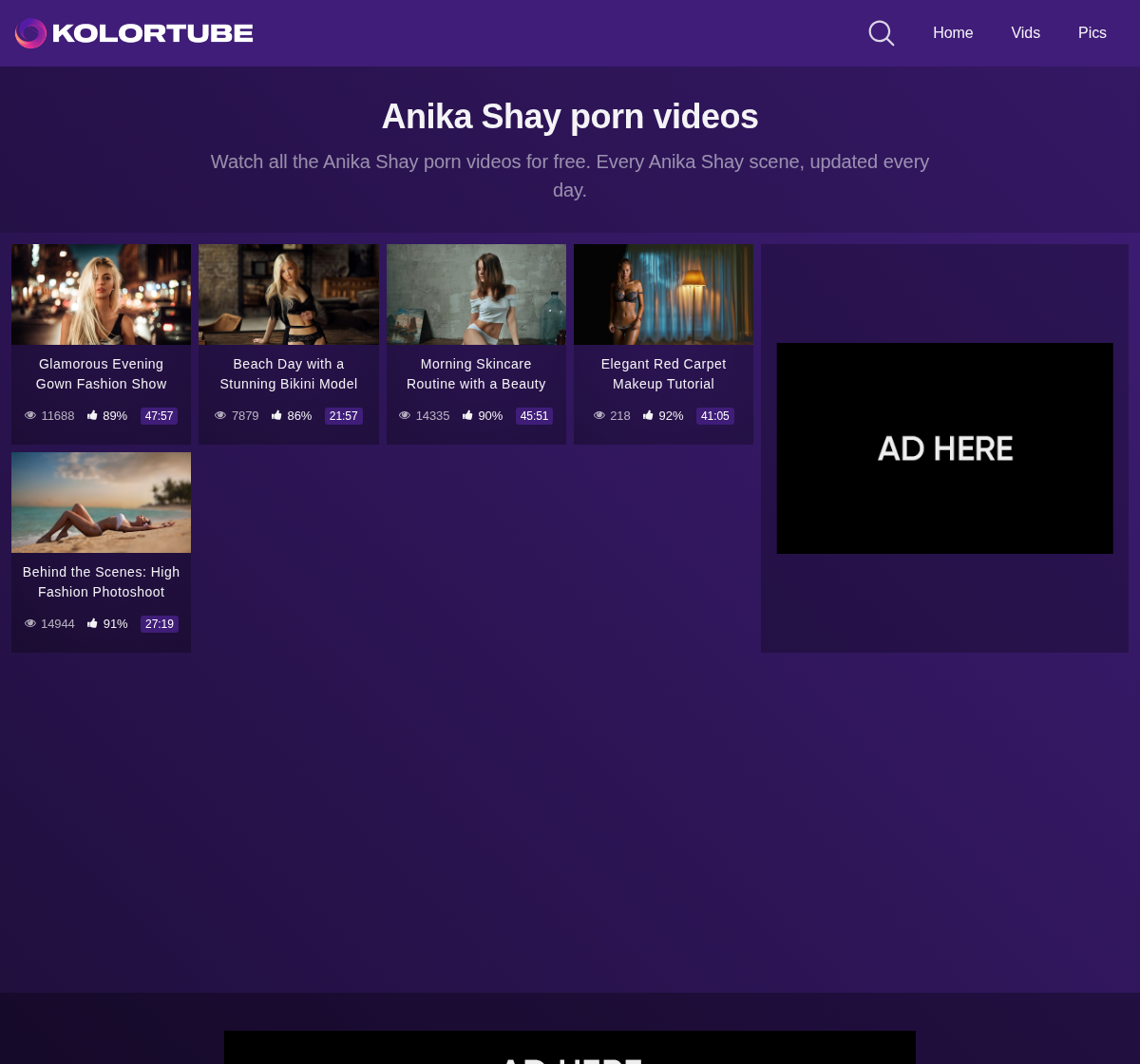
Actors are one of the three ways KolorTube organises videos, alongside categories and tags. Each actor gets an archive page listing their videos, which is what visitors follow when they are looking for someone in particular.
1. How actors are stored
An actor is a term in the actors taxonomy, attached to a post, exactly like
a tag. It is not a separate content type, so you assign actors from the post
editor itself, in the Actors box, typing names separated by commas.
Because it works like tags, a typo makes a new actor rather than matching the existing one. Check Posts → Actors now and then and merge what drifted.
2. Actor archives
Every actor has an archive listing their videos, with the theme's usual layout, its own ad zones, set in Advertising → Actor Page, and its own SEO text, set in SEO → Actor pages.
3. Changing actor to pornstar, or anything else
The actor part of the address, as in /actor/their-name/, is a slug you can
change, for example to pornstar. Set it in Settings → Permalinks, field
Actor slug, or in the Actors sub-tab of the
Videos tab of the Theme Options.
- The old addresses are redirected (301) to the new ones, so search engines and existing links keep working.
- The admin follows the new word: Posts → Actors becomes Posts → Pornstars.
- A slug already used by another address of the theme is refused, with a message saying so.
4. Actor images
Each actor can carry a photo, used on the Actors listing page.
Set it at Posts → Actors, editing the actor, in the Image field: it opens the WordPress media library, so upload once and reuse.
An actor with no image still appears, so the listing is usable from the first day, but a page of faces converts better than a page of names. It is worth filling in for the actors you actually push.
5. Listing every actor
The Actors page, created with the theme, lists every actor with their image. Its page and its slug are set in the Videos tab of the Theme Options, and the template is described in Page Templates. The Main Menu does not link to it by default: add it at Appearance → Menus.
6. Where to go next
- Page Templates for the Actors page.
- Options covers the ad zones and SEO of actor archives.