Video Information
A video on a FamousTube site is an ordinary WordPress post. What makes it a video is the FamousTube - Video information box below the editor, added by the theme to every post.
Nothing here is mandatory, but a post with none of it filled in is a blog entry rather than a video: no player, no thumbnail, no duration on its card.
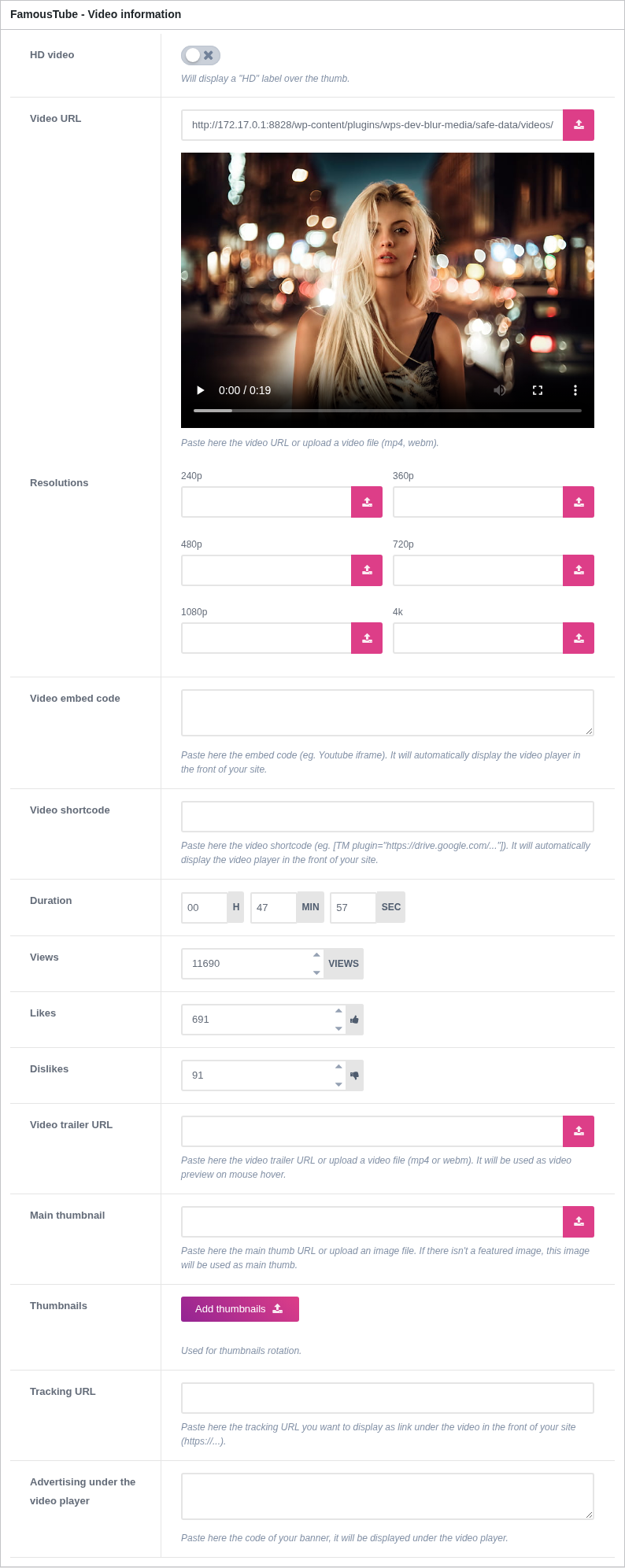
1. What plays the video
Three fields can hold the video, and they are alternatives rather than a set to fill in together.
Video URL
A direct link to an mp4 or webm file, or a file you upload from the button on the right. Use this when you host the video yourself, or when your source gives you a direct file.
Resolutions
The same video at 240p, 360p, 480p, 720p, 1080p and 4k, one field each.
These feed a quality switcher rather than the player itself, so they are only worth filling in when you have several encodes of the same video and a player that offers the choice, which is what WPS Player adds.
Video embed code
The full <iframe ...></iframe> from the source tube. Paste the embed code, not
the address of the page you copied it from.
This is what a video imported from a tube uses, and it is the most common case on a tube site: the video stays on the source's servers and your bandwidth bill stays flat.
Video shortcode
For a video that comes from a plugin rather than from a URL or an iframe, for example a player plugin that takes a Google Drive link. Paste its shortcode here and the theme renders it where the player goes.
2. What the visitor sees before pressing play
Main thumbnail
The image used on every card across the site, given as a URL or uploaded. When the post has a WordPress featured image, that one wins and this field is ignored, so pick one convention and stay with it.
Thumbnails
Several images for the rollover preview: on a card, the thumbnails cycle while the visitor's mouse is over it. This is the cheap version of a hover preview, since it costs a few images rather than a video file.
Video trailer URL
A short clip played on hover instead of cycling images. Better looking than the rotation, heavier to serve. Both are optional, and a site can use one, the other, or neither.
3. The HD label
Prints an HD badge over the thumbnail. It is a label and nothing more: it does not check the file, and it does not change how the video is served. Setting it on a low resolution clip simply lies to your visitors.
4. The numbers on a card
Duration
Hours, minutes and seconds, shown on the corner of the thumbnail. Worth filling in even when nothing else is: a card with no duration reads as broken.
Views
The view counter. The theme increments it on its own as visitors watch, so you only touch this to seed a number on a fresh site.
Likes and Dislikes
The two counters behind the rating bar under a video. As with views, the theme maintains them from visitors' votes.
A tube with 0 views on every video looks abandoned, which is why bulk importers usually bring the source's numbers with them. Editing them by hand is only practical for a handful of videos.
5. The two extras
Tracking URL
An affiliate or tracking link, displayed under the video as a link out. This is how a tube monetises traffic it does not keep: the visitor watches the preview on your site and follows the link to the source.
Advertising under the video player
An ad code for this video alone, shown under the player. The site-wide ad zones live in Advertising; this field is for a one-off, for example a sponsored video with its own banner.
6. Where to go next
- Getting Started adds a first video step by step.
- Options for the settings that apply to every video.
- Troubleshooting when a video does not play.