Block and Shortcode
Theme ad zones cover the standard positions, but sometimes a banner needs to sit inside a specific post, page, or custom template. WPS Ad Manager ships a native Gutenberg block and a shortcode for exactly that, and both render the same underlying banner.
1. Gutenberg block
Search for WPS Ad Banner in the block inserter (it lives under Widgets). No build step is required, it registers immediately once the plugin is active.
The block's settings panel lets you pick:
- Specific Banner: choose one banner by name, or leave it on Auto (rotation) to let the plugin pick using the current Rotation Mode.
- Filter by Placement: restrict Auto rotation to banners tagged with a given placement (Header, Sidebar, In Content, Footer, Popup / Overlay).
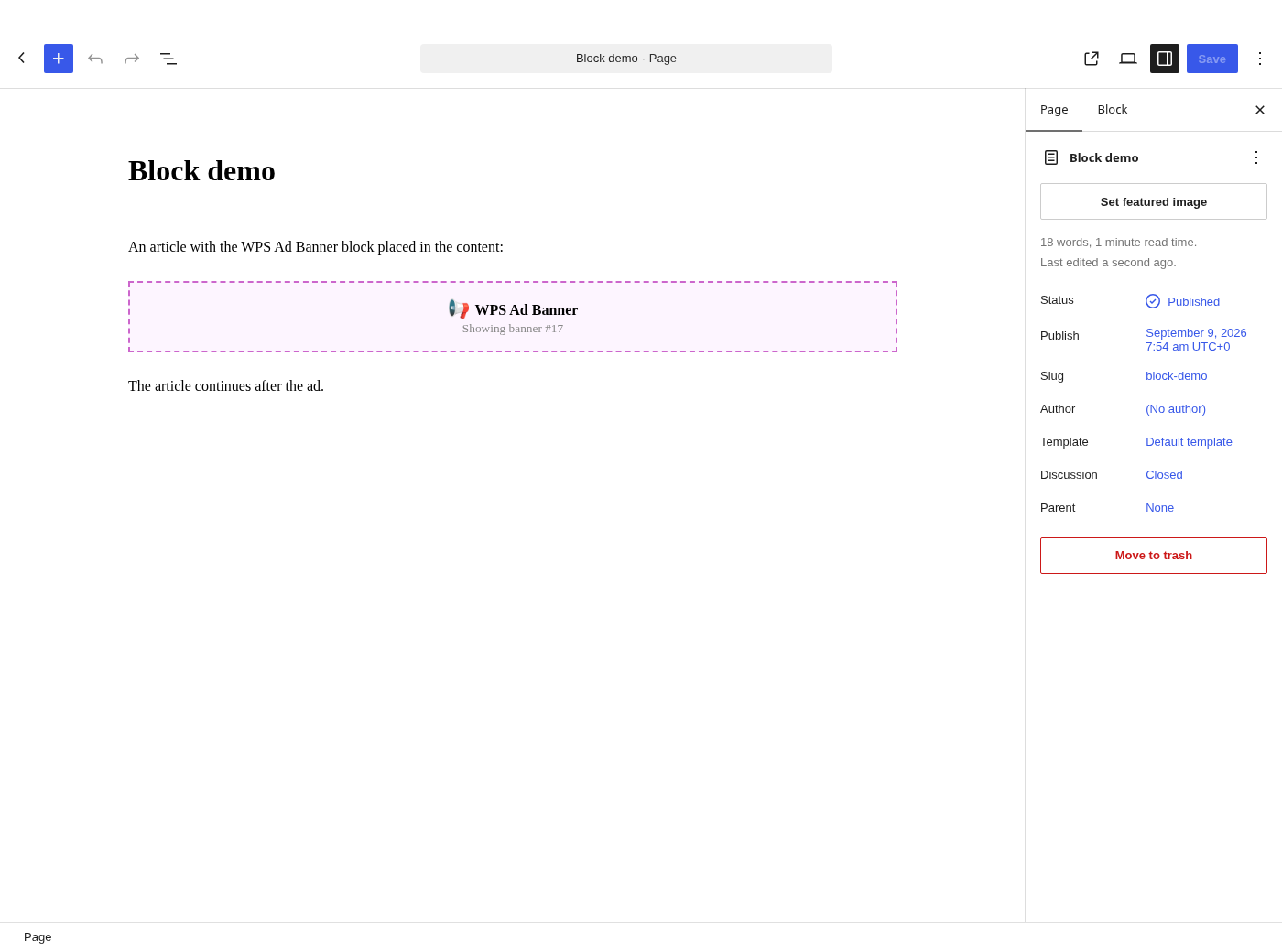
With a specific banner selected, the editor preview updates immediately to show which banner will render:
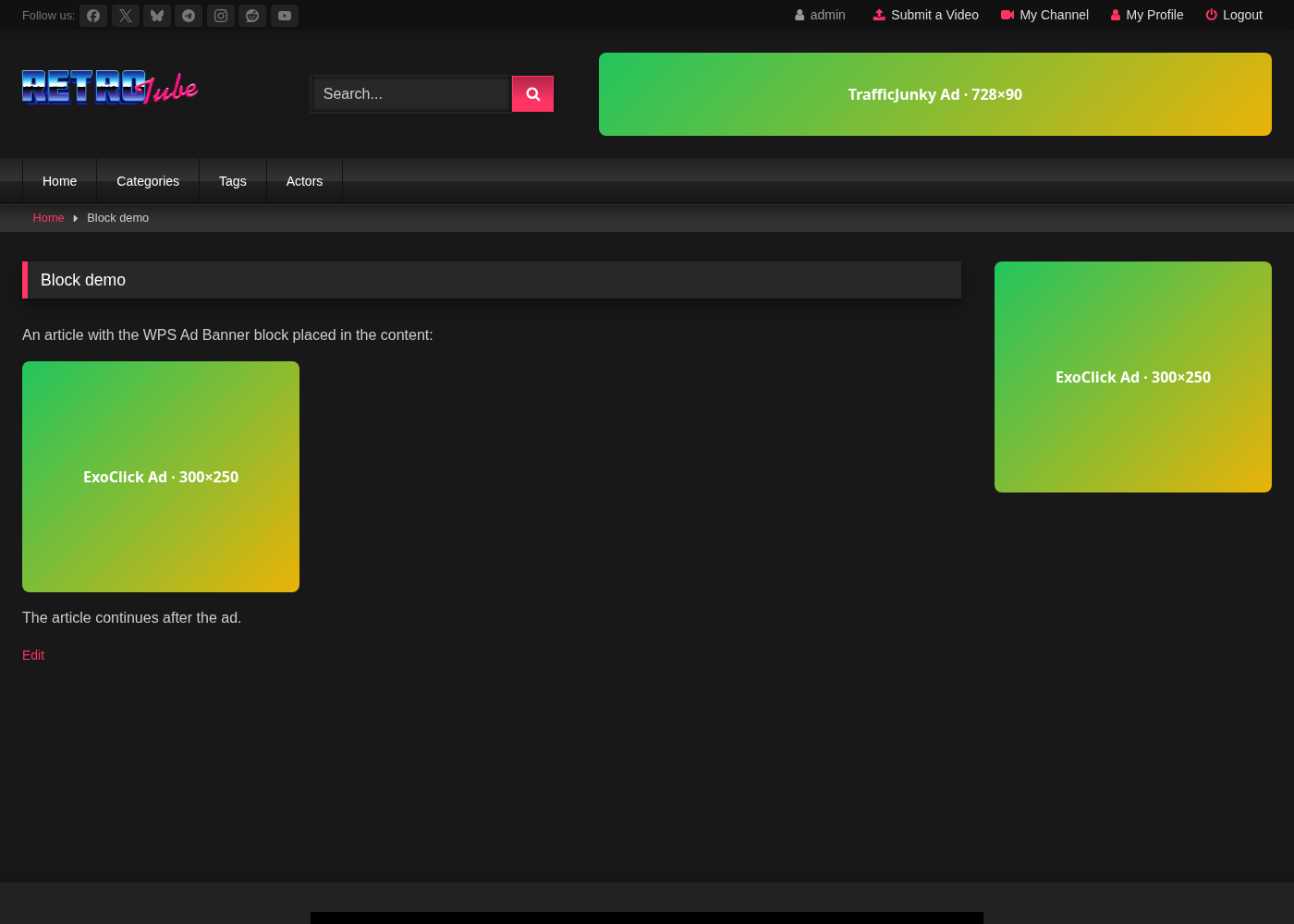
Publishing the page renders the banner exactly where the block sits in the content:
2. Shortcode
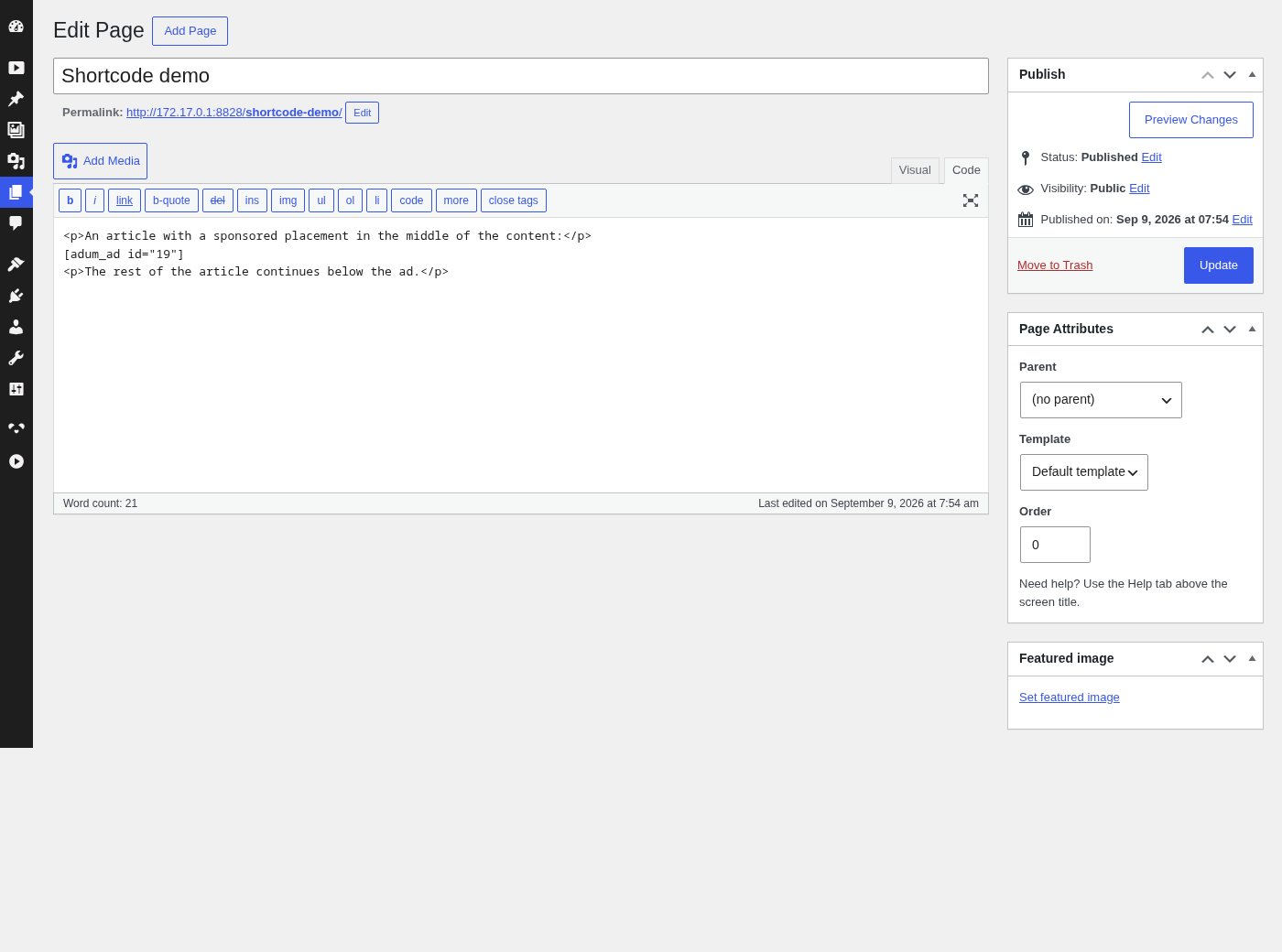
For classic-editor content, custom templates, or anywhere a full block isn't practical, use [adum_ad] directly:
[adum_ad]                        rotation, any available banner
[adum_ad id="5"]                 a specific banner by ID
[adum_ad placement="sidebar"]    rotation within one placement
[adum_ad align="left"]           alignment: left, center, or right
[adum_ad class="my-class"]       extra CSS class on the wrapper
Every banner's shortcode (with its ID already filled in) is copyable straight from the Banners list, next to each banner's stats.
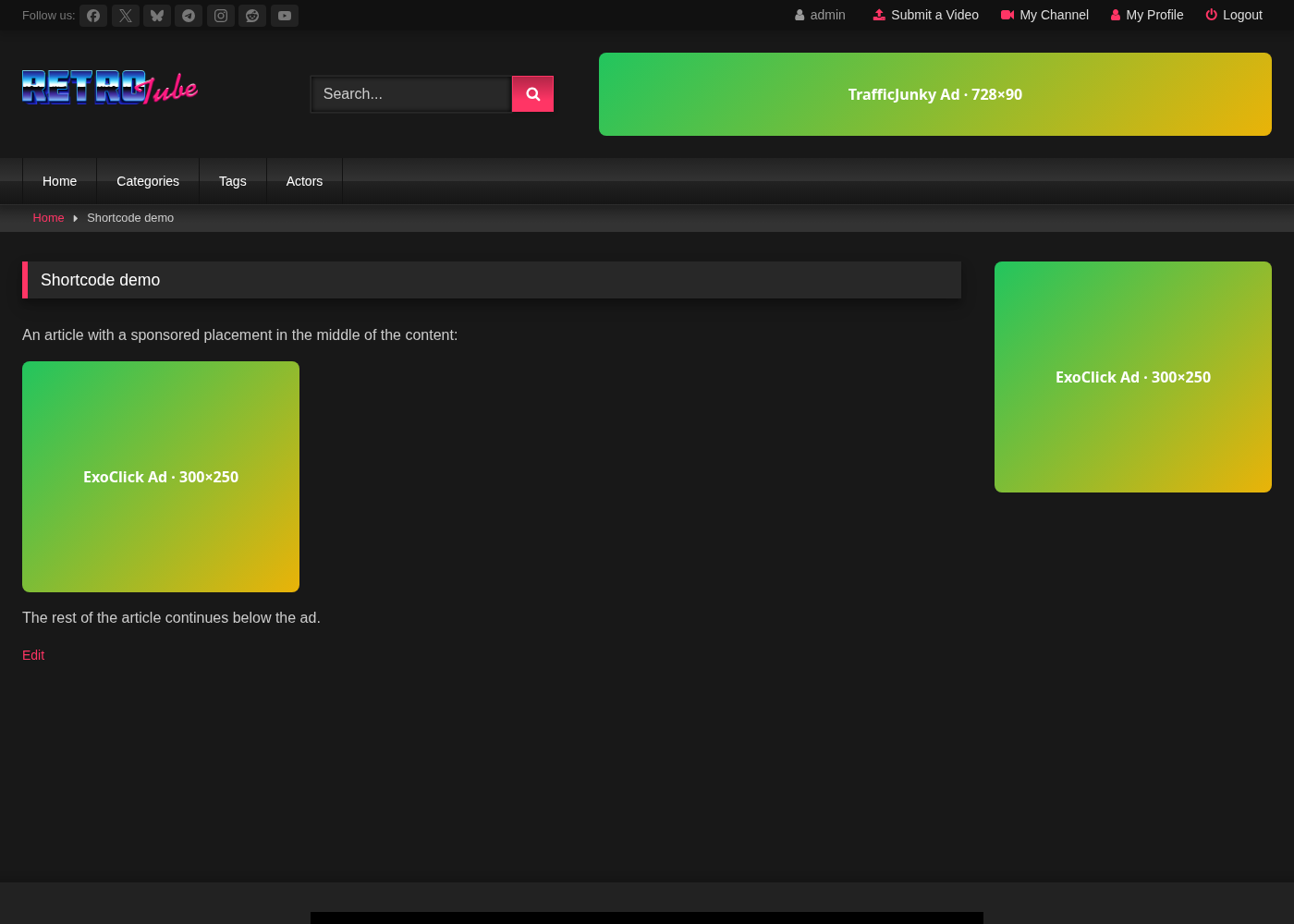
It renders the same way the block does:
3. Styling
Both the block and the shortcode wrap their output the same way theme placements do, so the .adum-ad custom CSS field in Options → Display applies everywhere a banner renders, regardless of how it was placed.
