General
The General tab controls how the paywall looks on your site and what your visitors see before they pay. Nothing here decides who gets access: that is set per post, and the plans themselves live in Pricing.
Changes take effect as soon as you click Save Changes. If you use a caching plugin, clear your cache before checking the result on the front end.
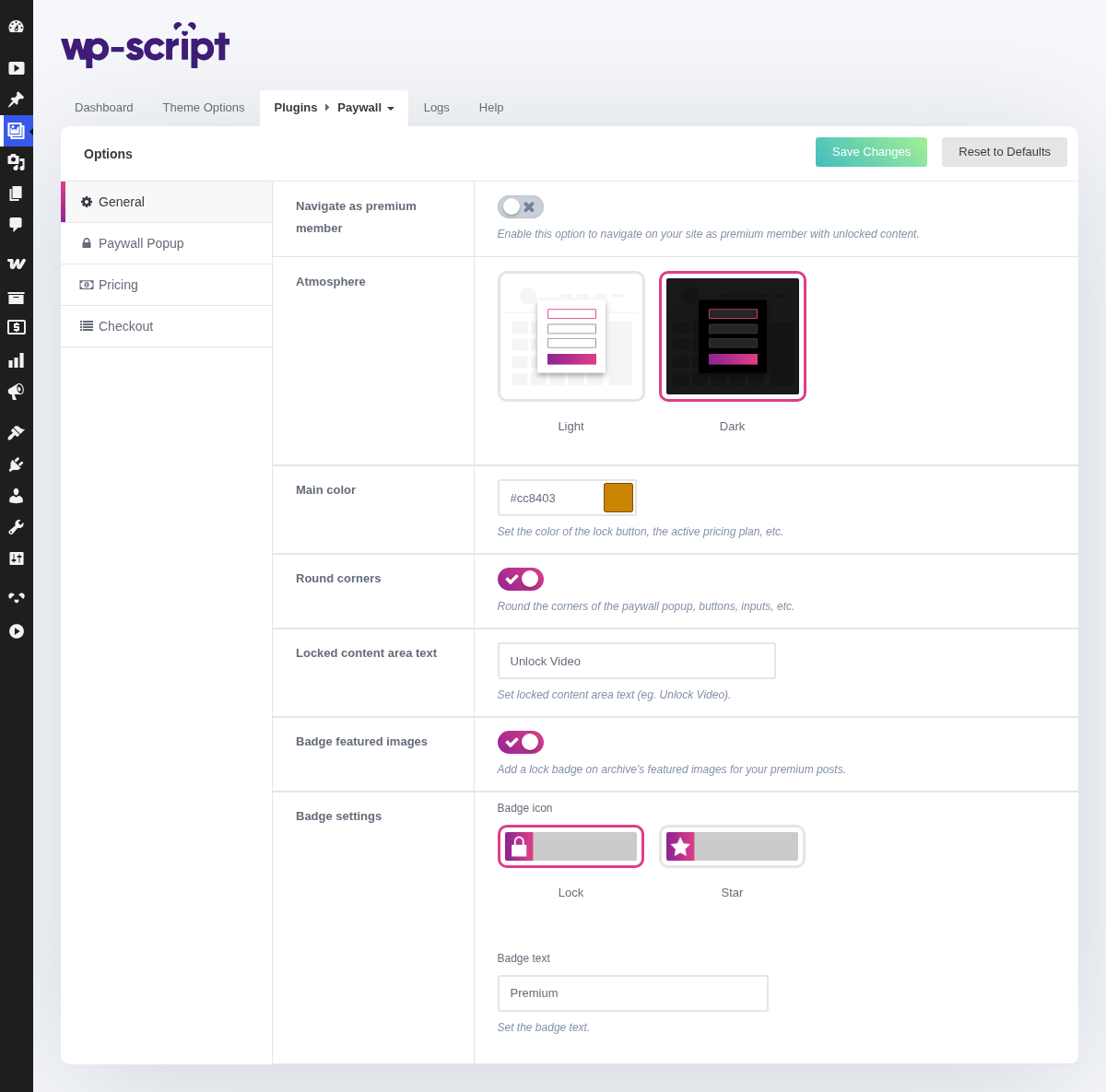
1. Navigate As Premium Member

Lets you browse your own site with every premium post unlocked, so you can check that a video plays correctly without paying for it. Only administrators are affected: your visitors still hit the paywall normally.
Off by default. Turn it on while you are setting the site up, and turn it back off when you want to see the site the way a visitor does.
With this option on you can no longer see your own paywall. To check what a visitor actually gets, either turn it off or open your site in a private browsing window while logged out.
2. Atmosphere

Sets the paywall popup and the locked content area to a light or a dark palette. Pick the one that matches your theme, so the paywall reads as part of your site rather than as something bolted on.
Dark by default, which suits the WP-Script tube themes.
3. Main Color

The accent color used for the unlock button, the selected pricing plan and the premium badge. Setting it to your theme's own accent color is the single quickest way to make the paywall look native.
Defaults to #cc8403.
4. Round Corners

Rounds the corners of the popup, its buttons and its input fields. Turn it off for a squared-off look if your theme uses sharp edges everywhere else.
On by default.
5. Locked Content Area Text

The wording on the button covering a locked video. This is the last thing a visitor reads before deciding to pay, so it is worth being specific: "Unlock this scene" converts better than a generic "Continue".
Defaults to Unlock Video.
6. Badge Featured Images

Adds a small badge on the thumbnail of every premium post across your category pages, tag pages and homepage rails. Visitors then know a video is premium before clicking it, which cuts the frustration of landing on a paywall unannounced.
On by default. Turn it off if you would rather let visitors discover the paywall on the video page itself.
7. Badge Settings
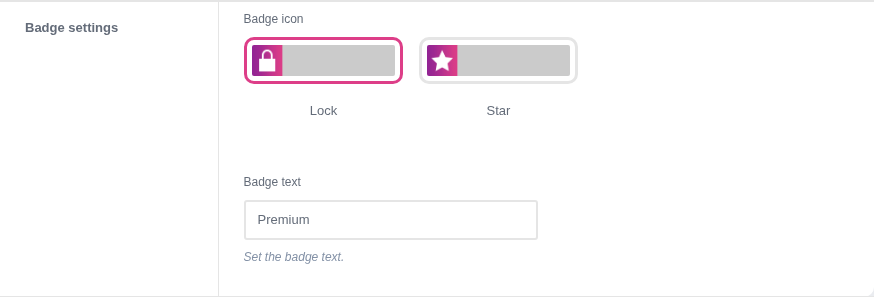
Only appears once Badge featured images is on.
Choose between a lock and a star icon, and set the word printed next to it. A lock reads as "you cannot watch this yet", a star reads as "this one is special": pick the one matching how you want premium content to feel. The text defaults to Premium.
8. Where to go next
- Paywall Popup sets the wording and layout of the popup itself.
- Pricing is where you create the plans visitors can buy.
- Checkout controls which fields a buyer has to fill in.