Site Key Activation
Since WP-Script Core v6.0.0, activating your products no longer relies on your account-wide WP-Script license key. Each site now gets its own site key, generated from your WP-Script account for that specific site.
Your site key is specific to one website. If you run WP-Script products on several sites, you need to generate a separate site key for each one.
1. How to activate a site with a site key
-
Go to the WordPress Admin Panel on your site.
-
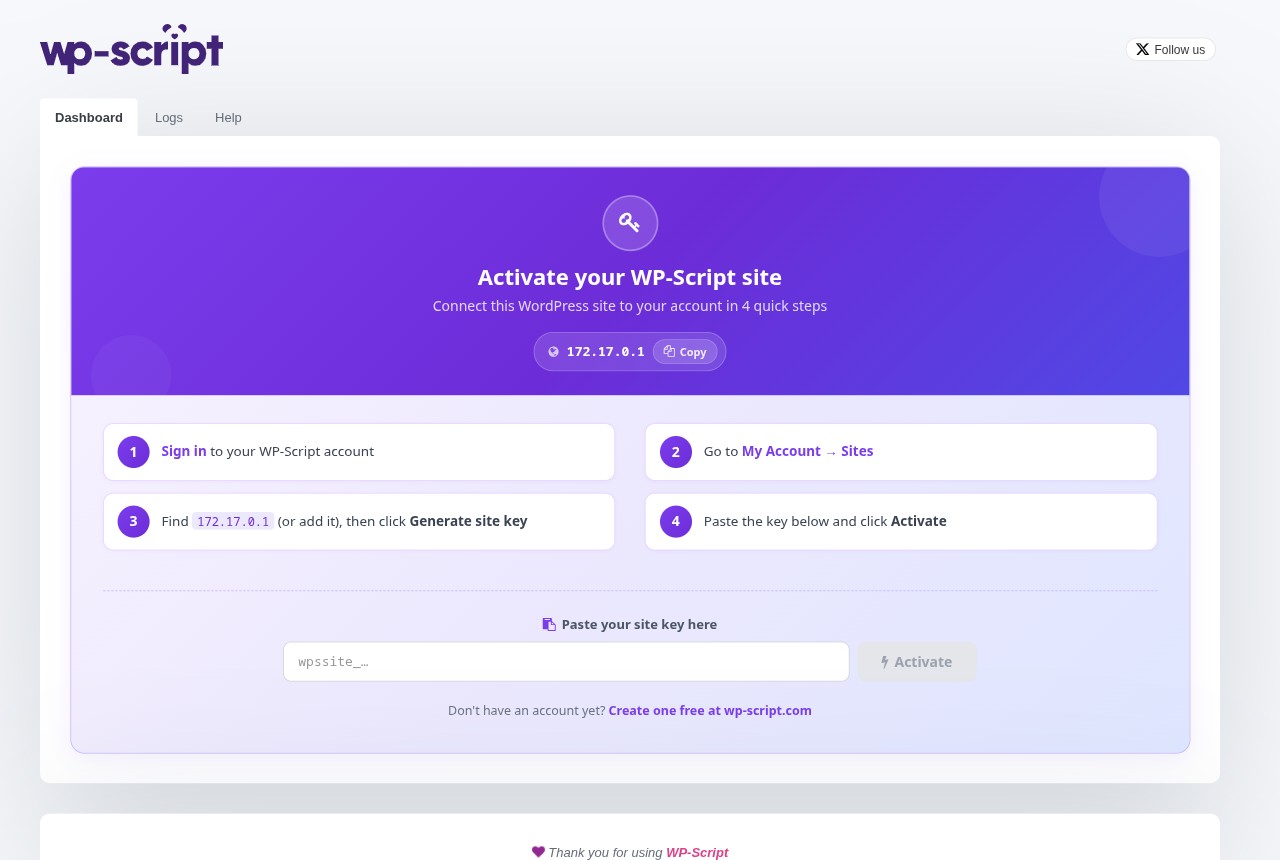
Navigate to the WP-Script Core Dashboard page. Since no site key is stored yet, you'll see the activation screen.
-
Sign in to your WP-Script account.
-
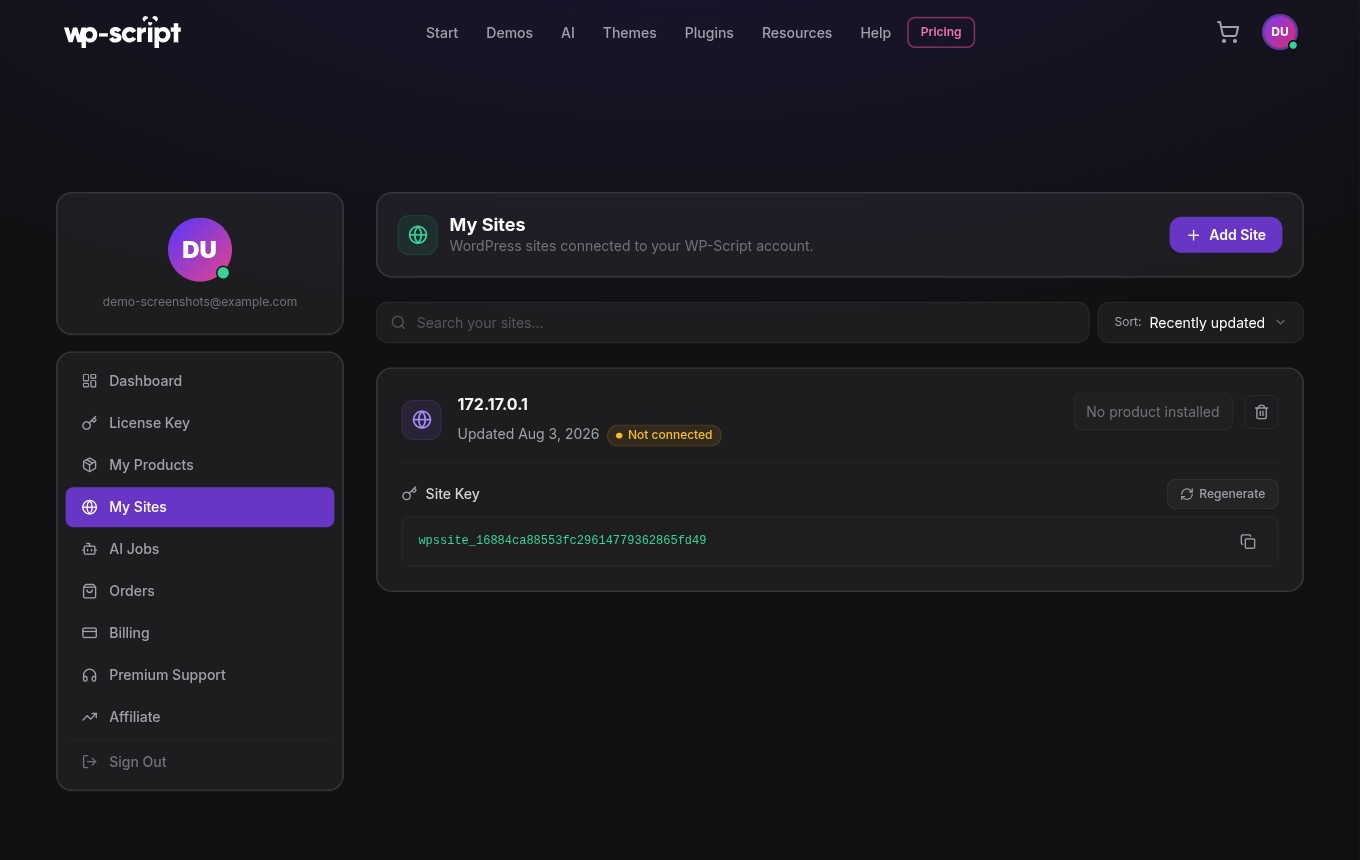
Go to My Account → Sites.
-
Find your site in the list (the dashboard shows you its domain name so you can spot it), or add it if it isn't there yet. A site key is generated automatically for it.
-
Copy the site key.
-
Back in the WP-Script Core Dashboard, paste the key in the Paste your site key here field and click Activate.
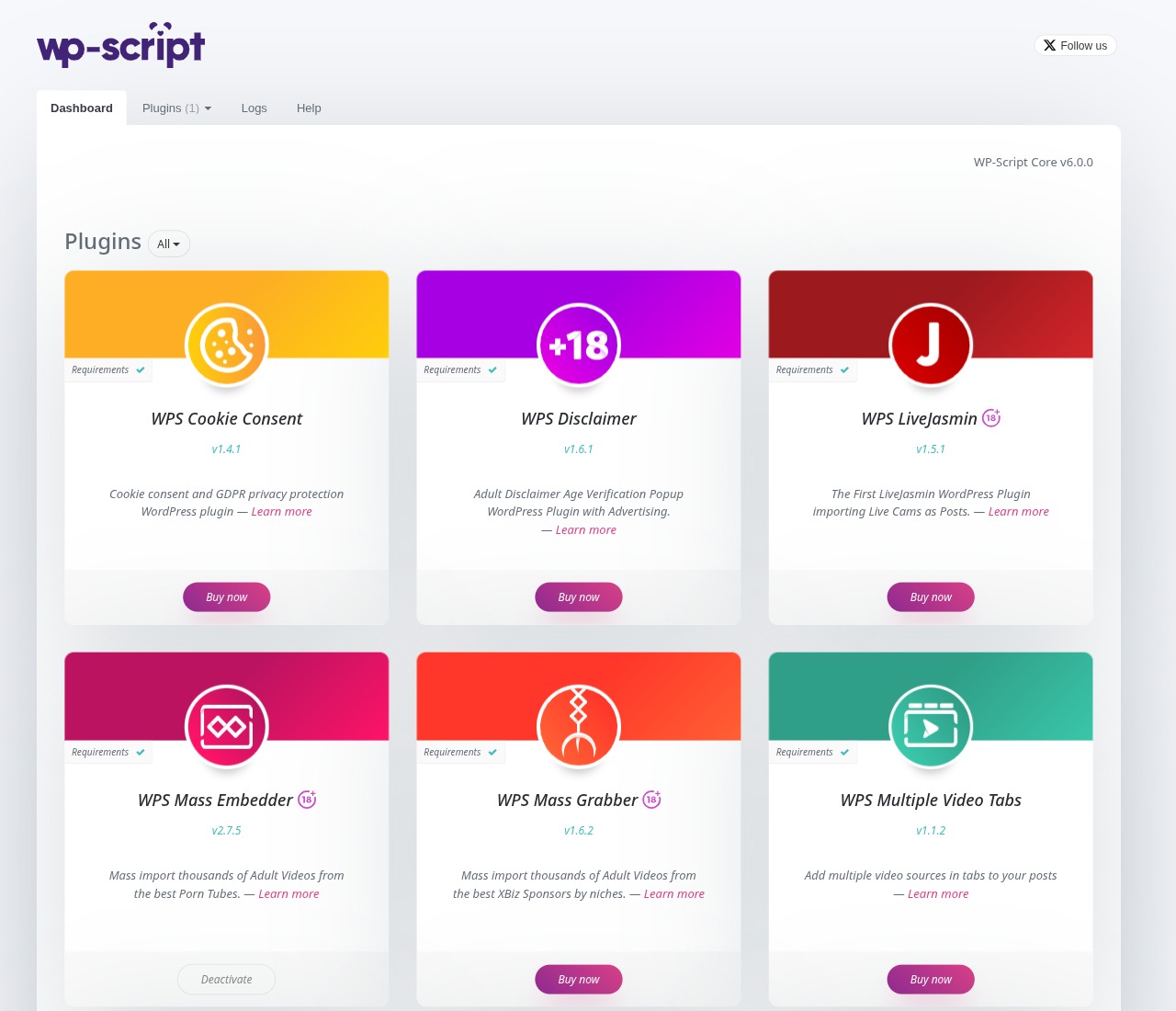
Your dashboard reloads automatically once the key is validated, giving you access to your purchased themes and plugins on this site.
2. How to update or change your site key
If you need to replace the site key on an already-activated site (for example after regenerating one on wp-script.com), go to the WP-Script Core Dashboard page: your current key is shown hidden for security reasons. Paste the new key in the same field and click the refresh button next to it to switch keys.
You can manage, view, and regenerate all your site keys at any time from My Account → Sites on wp-script.com.